> ## Documentation Index
> Fetch the complete documentation index at: https://wundergraphinc-brendan-add-sof-link.mintlify.site/llms.txt
> Use this file to discover all available pages before exploring further.
# Cosmo Cloud Onboarding
> Learn how to deploy your first federated graph and integrate it with your Cosmo Router.
## Getting Started
* If you don't have one, create a free account at [https://cosmo.wundergraph.com/login](https://cosmo.wundergraph.com/login).
* You need to have [Node.js LTS](https://nodejs.org/en/download/) (or higher), npm, and docker installed.
* Curl is needed to download files.
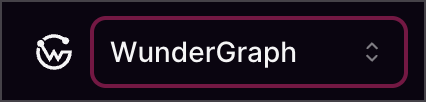
After signing up, a personal organization is automatically created for you. You can use this for the demo, but we recommend creating a separate organization once you complete the tutorial. To do this, open the organization dropdown, select **"Create a new organization",** and choose a relevant name and slug for your new organization.
 Install the CLI to interact with the control plane and manage resources like graphs and API keys:
```bash theme={null}
npm install -g wgc@latest
```
Log in with:
```bash theme={null}
wgc auth login
```
This opens your browser and prompts you to sign into your Cosmo account. Once logged in, you'll receive a terminal prompt to select your organization.
After logging in, verify your session and ensure you're in the correct organization by running:
```bash theme={null}
wgc auth whoami
```
## Create the Demo
### Create a Namespace
A namespace helps separate resources and prevents unintended modifications between environments. Namespaces can also be used to create isolated environments for better organization and management.
To create a **development** namespace, run:
```bash theme={null}
wgc namespace create development
```
### Create a Federated Graph
A federated graph represents your unified, federated GraphQL schema. Each federated graph is assigned a URL and can be mapped to a single router instance.
For this demo, you’ll point to a demo router. The URL doesn’t need to be valid for the demo, but in a production environment, you would specify the URL of your deployed router.
Run the following command to create a federated graph:
```bash theme={null}
wgc federated-graph create demo \
--namespace development \
--routing-url https://demo-router.fly.dev/graphql
```
The [CLI documentation](/cli/intro) provides detailed explanations of the parameters. If necessary, the parameters can be changed later.
### Create Subgraphs
A **federated graph** requires subgraphs to function. Without subgraphs, it cannot serve a valid GraphQL schema.
For this demo, you'll use pre-deployed demo subgraphs on a serverless platform. Follow the order below to ensure proper configuration:
1. Create the subgraph:
```bash theme={null}
wgc subgraph create products \
--namespace development \
--routing-url https://product-api.fly.dev/graphql
```
1. Download the schema and publish it:
```bash theme={null}
curl -O https://raw.githubusercontent.com/wundergraph/cosmo/refs/heads/main/demo/pkg/subgraphs/products/subgraph/schema.graphqls \
&& wgc subgraph publish products \
--namespace development \
--schema ./schema.graphqls
```
1. Create the subgraph:
```bash theme={null}
wgc subgraph create employees \
--namespace development \
--routing-url https://employees-api.fly.dev/graphql
```
1. Download the schema and publish it:
Expected Composition Errors
Before publishing, be aware that you will see errors indicating that the composition was unsuccessful. This is expected and will be resolved once the remaining subgraphs are published.
Your router will never deploy an invalid composition. Instead, it will continue running the latest valid composition schema.
Install the CLI to interact with the control plane and manage resources like graphs and API keys:
```bash theme={null}
npm install -g wgc@latest
```
Log in with:
```bash theme={null}
wgc auth login
```
This opens your browser and prompts you to sign into your Cosmo account. Once logged in, you'll receive a terminal prompt to select your organization.
After logging in, verify your session and ensure you're in the correct organization by running:
```bash theme={null}
wgc auth whoami
```
## Create the Demo
### Create a Namespace
A namespace helps separate resources and prevents unintended modifications between environments. Namespaces can also be used to create isolated environments for better organization and management.
To create a **development** namespace, run:
```bash theme={null}
wgc namespace create development
```
### Create a Federated Graph
A federated graph represents your unified, federated GraphQL schema. Each federated graph is assigned a URL and can be mapped to a single router instance.
For this demo, you’ll point to a demo router. The URL doesn’t need to be valid for the demo, but in a production environment, you would specify the URL of your deployed router.
Run the following command to create a federated graph:
```bash theme={null}
wgc federated-graph create demo \
--namespace development \
--routing-url https://demo-router.fly.dev/graphql
```
The [CLI documentation](/cli/intro) provides detailed explanations of the parameters. If necessary, the parameters can be changed later.
### Create Subgraphs
A **federated graph** requires subgraphs to function. Without subgraphs, it cannot serve a valid GraphQL schema.
For this demo, you'll use pre-deployed demo subgraphs on a serverless platform. Follow the order below to ensure proper configuration:
1. Create the subgraph:
```bash theme={null}
wgc subgraph create products \
--namespace development \
--routing-url https://product-api.fly.dev/graphql
```
1. Download the schema and publish it:
```bash theme={null}
curl -O https://raw.githubusercontent.com/wundergraph/cosmo/refs/heads/main/demo/pkg/subgraphs/products/subgraph/schema.graphqls \
&& wgc subgraph publish products \
--namespace development \
--schema ./schema.graphqls
```
1. Create the subgraph:
```bash theme={null}
wgc subgraph create employees \
--namespace development \
--routing-url https://employees-api.fly.dev/graphql
```
1. Download the schema and publish it:
Expected Composition Errors
Before publishing, be aware that you will see errors indicating that the composition was unsuccessful. This is expected and will be resolved once the remaining subgraphs are published.
Your router will never deploy an invalid composition. Instead, it will continue running the latest valid composition schema.
 ```bash theme={null}
curl -O https://raw.githubusercontent.com/wundergraph/cosmo/refs/heads/main/demo/pkg/subgraphs/employees/subgraph/schema.graphqls \
&& wgc subgraph publish employees \
--namespace development \
--schema ./schema.graphqls
```
1. Create the subgraph:
```bash theme={null}
wgc subgraph create mood \
--namespace development \
--routing-url https://mood-api.fly.dev/graphql
```
1. Download the schema and publish it:
```bash theme={null}
curl -O https://raw.githubusercontent.com/wundergraph/cosmo/refs/heads/main/demo/pkg/subgraphs/mood/subgraph/schema.graphqls \
&& wgc subgraph publish mood \
--namespace development \
--schema ./schema.graphqls
```
After publishing the Mood subgraph schema, several composition errors have been resolved. Next, publish the Availability subgraph.
1. Create the subgraph:
```bash theme={null}
wgc subgraph create availability \
--namespace development \
--routing-url https://availability-api.fly.dev/graphql
```
1. Download the schema and publish it:
```bash theme={null}
curl -O https://raw.githubusercontent.com/wundergraph/cosmo/refs/heads/main/demo/pkg/subgraphs/availability/subgraph/schema.graphqls \
&& wgc subgraph publish availability \
--namespace development \
--schema ./schema.graphqls
```
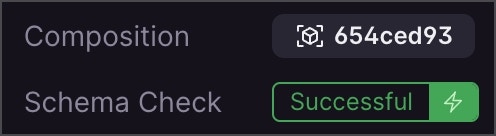
After publishing the schema, there should be no composition errors. Your graph has been successfully composed and is now ready to be retrieved by the router.
To verify, open the Cosmo Overview page for your graph.
```bash theme={null}
curl -O https://raw.githubusercontent.com/wundergraph/cosmo/refs/heads/main/demo/pkg/subgraphs/employees/subgraph/schema.graphqls \
&& wgc subgraph publish employees \
--namespace development \
--schema ./schema.graphqls
```
1. Create the subgraph:
```bash theme={null}
wgc subgraph create mood \
--namespace development \
--routing-url https://mood-api.fly.dev/graphql
```
1. Download the schema and publish it:
```bash theme={null}
curl -O https://raw.githubusercontent.com/wundergraph/cosmo/refs/heads/main/demo/pkg/subgraphs/mood/subgraph/schema.graphqls \
&& wgc subgraph publish mood \
--namespace development \
--schema ./schema.graphqls
```
After publishing the Mood subgraph schema, several composition errors have been resolved. Next, publish the Availability subgraph.
1. Create the subgraph:
```bash theme={null}
wgc subgraph create availability \
--namespace development \
--routing-url https://availability-api.fly.dev/graphql
```
1. Download the schema and publish it:
```bash theme={null}
curl -O https://raw.githubusercontent.com/wundergraph/cosmo/refs/heads/main/demo/pkg/subgraphs/availability/subgraph/schema.graphqls \
&& wgc subgraph publish availability \
--namespace development \
--schema ./schema.graphqls
```
After publishing the schema, there should be no composition errors. Your graph has been successfully composed and is now ready to be retrieved by the router.
To verify, open the Cosmo Overview page for your graph.
 ### Create a Router Token
After publishing all subgraphs, you need to generate a Router Token. This token allows the router to communicate with the control plane and fetch the latest valid graph composition.
Run the following command to create a router token:
```bash theme={null}
wgc router token create myName \
--graph-name demo \
--namespace development
```
* Replace `myName` with a meaningful name for your token.
* The command returns a confirmation message and token, similar to:
```bash theme={null}
Successfully created token myName for graph demo
```
* **Copy and store the token securely**, as it will not be shown again. You will need it in the next step.
### Run the Router
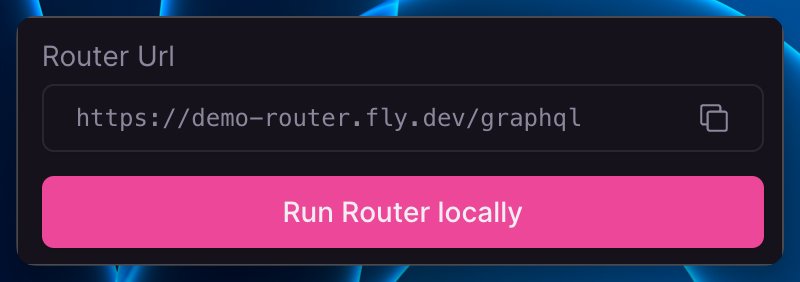
Finally, go to the **Overview** page of your federated graph in **Cosmo Cloud** and click **"Run Router Locally"** to copy the command needed to start the router.
Make sure to replace `` with the token you copied set in the previous step.
### Create a Router Token
After publishing all subgraphs, you need to generate a Router Token. This token allows the router to communicate with the control plane and fetch the latest valid graph composition.
Run the following command to create a router token:
```bash theme={null}
wgc router token create myName \
--graph-name demo \
--namespace development
```
* Replace `myName` with a meaningful name for your token.
* The command returns a confirmation message and token, similar to:
```bash theme={null}
Successfully created token myName for graph demo
```
* **Copy and store the token securely**, as it will not be shown again. You will need it in the next step.
### Run the Router
Finally, go to the **Overview** page of your federated graph in **Cosmo Cloud** and click **"Run Router Locally"** to copy the command needed to start the router.
Make sure to replace `` with the token you copied set in the previous step.
 Alternatively, you can use the following command:
```bash theme={null}
docker run \
--name cosmo-router \
--rm \
-p 3002:3002 \
--add-host=host.docker.internal:host-gateway \
--pull always \
-e DEV_MODE=true \
-e LISTEN_ADDR=0.0.0.0:3002 \
-e GRAPH_API_TOKEN="" \
ghcr.io/wundergraph/cosmo/router:latest
```
### Open the Playground
Open [http://localhost:3002](http://localhost:3002) and run your first GraphQL operation with WunderGraph Cosmo! The same playground is also available on Cosmo Cloud.
### Example Query that involves all subgraphs
```bash theme={null}
query myEmployees {
employees {
id
products
role {
departments
}
details {
forename
}
isAvailable
currentMood
}
}
```
#### Bonus
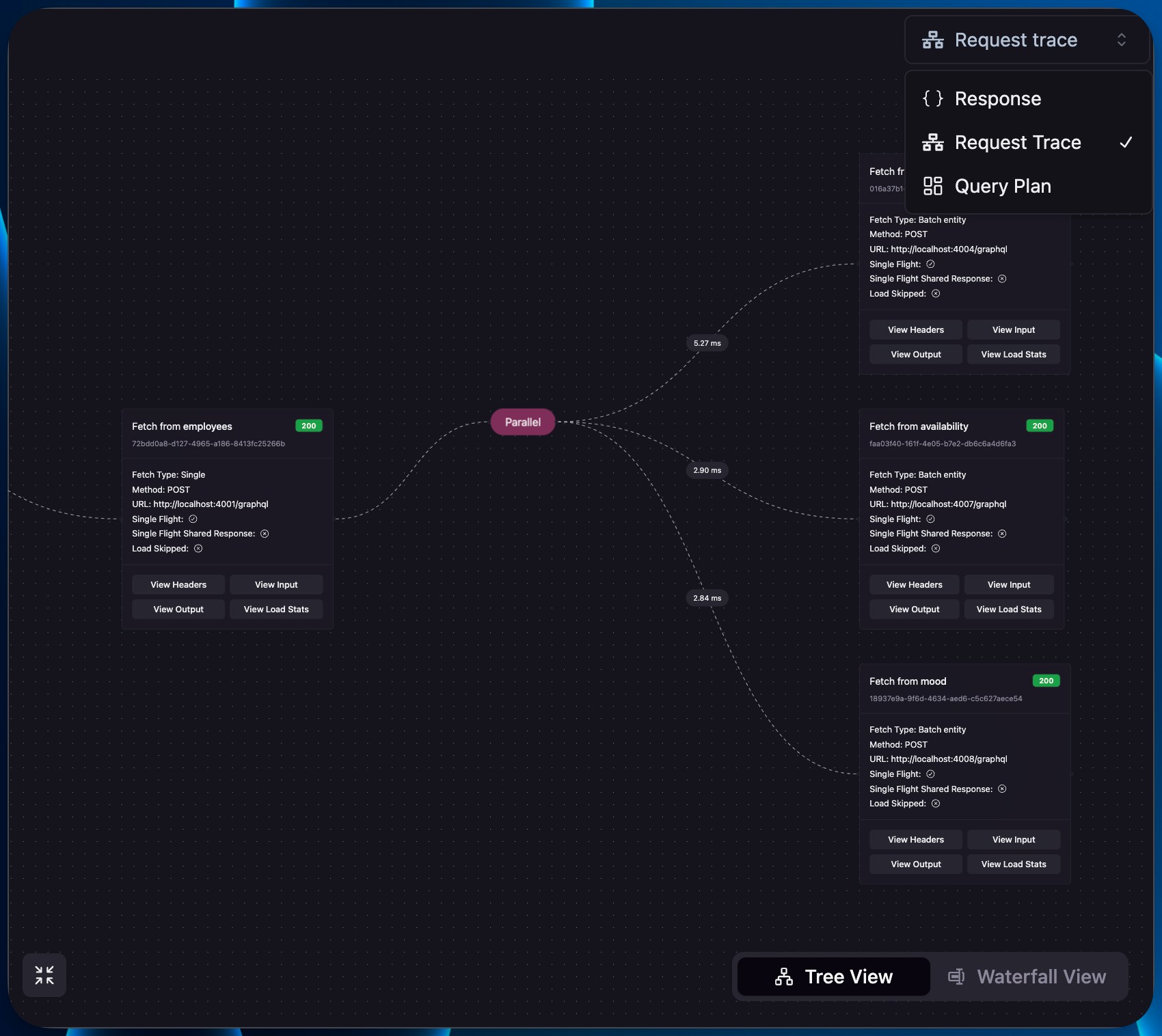
After executing the [Example Query](/getting-started/cosmo-cloud-onboarding#example-query-that-involves-all-subgraphs), use the dropdown on the right to see how the router processed the request and distributed it across subgraphs. Inspect the generated query plan to understand execution details, troubleshoot issues during development, and ensure optimal performance in production.
If you want to learn more about it, please take a look at [ART](/router/advanced-request-tracing-art) and [Query Plans](/router/query-plan).
Alternatively, you can use the following command:
```bash theme={null}
docker run \
--name cosmo-router \
--rm \
-p 3002:3002 \
--add-host=host.docker.internal:host-gateway \
--pull always \
-e DEV_MODE=true \
-e LISTEN_ADDR=0.0.0.0:3002 \
-e GRAPH_API_TOKEN="" \
ghcr.io/wundergraph/cosmo/router:latest
```
### Open the Playground
Open [http://localhost:3002](http://localhost:3002) and run your first GraphQL operation with WunderGraph Cosmo! The same playground is also available on Cosmo Cloud.
### Example Query that involves all subgraphs
```bash theme={null}
query myEmployees {
employees {
id
products
role {
departments
}
details {
forename
}
isAvailable
currentMood
}
}
```
#### Bonus
After executing the [Example Query](/getting-started/cosmo-cloud-onboarding#example-query-that-involves-all-subgraphs), use the dropdown on the right to see how the router processed the request and distributed it across subgraphs. Inspect the generated query plan to understand execution details, troubleshoot issues during development, and ensure optimal performance in production.
If you want to learn more about it, please take a look at [ART](/router/advanced-request-tracing-art) and [Query Plans](/router/query-plan).
 ## Prevent breaking changes
Each time you interact with the router, schema usage data is collected and centralized on our platform. This data helps you manage federation at scale and, more importantly, identify potential impacts on your customers before making changes.
To integrate this into your workflow, use the check command to assess the impact of any schema modifications.
Run the following command to download the schema:
```bash theme={null}
curl -O https://raw.githubusercontent.com/wundergraph/cosmo/refs/heads/main/demo/pkg/subgraphs/employees/subgraph/schema.graphqls
```
By default, the file is saved in your current working directory. Verify its location with:
```bash theme={null}
ls -l schema.graphqls
```
If you need to search for the file, use:
```bash theme={null}
find ~ -name "schema.graphqls"
```
Once you've located the file, open it in your preferred text editor modify it.
Remove the `OPERATIONS` enum value from the schema:
```bash theme={null}
enum Department {
ENGINEERING
MARKETING
# OPERATIONS
}
```
Run the check command:
```bash theme={null}
wgc subgraph check employees \
--namespace development \
--schema ./schema.graphqls
```
You should see an output similar to the following. The change is flagged as breaking because the `departments` field was queried in an example query, meaning its removal would impact existing clients.
```bash theme={null}
❯ wgc subgraph check employees \
--namespace development \
--schema ./schema.graphqls
Checking the proposed schema
⚠ Compared 1 breaking change's impacting 1 operations.
Found client activity between 10/22/2024, 2:00:00 AM and 10/22/2024, 2:00:00 AM
Detected the following changes:
┌────────────┬────────────────────┬────────────────────────────────────────────────────────────┐
│ CHANGE │ TYPE │ DESCRIPTION │
├────────────┼────────────────────┼────────────────────────────────────────────────────────────┤
│ ✖ BREAKING │ ENUM_VALUE_REMOVED │ Enum value 'OPERATIONS' was removed from enum 'Department' │
└────────────┴────────────────────┴────────────────────────────────────────────────────────────┘
✖ Schema check failed. This check has encountered 1 breaking change's that would break operations from existing client traffic.
See https://cosmo-docs.wundergraph.com/studio/schema-checks for more information on resolving operation check errors.
Open in studio: https://cosmo.wundergraph.com/.....
```
Click the `Open in studio` link to review the schema check in Cosmo Studio.
Once you're confident about the impact of your changes, publish them to automatically update your router fleet:
```bash theme={null}
wgc subgraph publish employees \
--namespace development \
--schema ./schema.graphqls
```
## Clean up
To remove all resources, delete the namespace with:
```bash theme={null}
wgc namespace delete -f development
```
## Summary
In this tutorial, you learned how to run a router with a functional federated graph consisting of four subgraphs and safely release production changes.
Now is the perfect time to visit your [Dashboard](https://cosmo.wundergraph.com) to gain insights into your usage.
## Prevent breaking changes
Each time you interact with the router, schema usage data is collected and centralized on our platform. This data helps you manage federation at scale and, more importantly, identify potential impacts on your customers before making changes.
To integrate this into your workflow, use the check command to assess the impact of any schema modifications.
Run the following command to download the schema:
```bash theme={null}
curl -O https://raw.githubusercontent.com/wundergraph/cosmo/refs/heads/main/demo/pkg/subgraphs/employees/subgraph/schema.graphqls
```
By default, the file is saved in your current working directory. Verify its location with:
```bash theme={null}
ls -l schema.graphqls
```
If you need to search for the file, use:
```bash theme={null}
find ~ -name "schema.graphqls"
```
Once you've located the file, open it in your preferred text editor modify it.
Remove the `OPERATIONS` enum value from the schema:
```bash theme={null}
enum Department {
ENGINEERING
MARKETING
# OPERATIONS
}
```
Run the check command:
```bash theme={null}
wgc subgraph check employees \
--namespace development \
--schema ./schema.graphqls
```
You should see an output similar to the following. The change is flagged as breaking because the `departments` field was queried in an example query, meaning its removal would impact existing clients.
```bash theme={null}
❯ wgc subgraph check employees \
--namespace development \
--schema ./schema.graphqls
Checking the proposed schema
⚠ Compared 1 breaking change's impacting 1 operations.
Found client activity between 10/22/2024, 2:00:00 AM and 10/22/2024, 2:00:00 AM
Detected the following changes:
┌────────────┬────────────────────┬────────────────────────────────────────────────────────────┐
│ CHANGE │ TYPE │ DESCRIPTION │
├────────────┼────────────────────┼────────────────────────────────────────────────────────────┤
│ ✖ BREAKING │ ENUM_VALUE_REMOVED │ Enum value 'OPERATIONS' was removed from enum 'Department' │
└────────────┴────────────────────┴────────────────────────────────────────────────────────────┘
✖ Schema check failed. This check has encountered 1 breaking change's that would break operations from existing client traffic.
See https://cosmo-docs.wundergraph.com/studio/schema-checks for more information on resolving operation check errors.
Open in studio: https://cosmo.wundergraph.com/.....
```
Click the `Open in studio` link to review the schema check in Cosmo Studio.
Once you're confident about the impact of your changes, publish them to automatically update your router fleet:
```bash theme={null}
wgc subgraph publish employees \
--namespace development \
--schema ./schema.graphqls
```
## Clean up
To remove all resources, delete the namespace with:
```bash theme={null}
wgc namespace delete -f development
```
## Summary
In this tutorial, you learned how to run a router with a functional federated graph consisting of four subgraphs and safely release production changes.
Now is the perfect time to visit your [Dashboard](https://cosmo.wundergraph.com) to gain insights into your usage.