> ## Documentation Index
> Fetch the complete documentation index at: https://wundergraphinc-brendan-add-sof-link.mintlify.site/llms.txt
> Use this file to discover all available pages before exploring further.
# Group Rules
> Configure the resources accessible to your groups.
A **group rule** defines the roles and associated resources that determine what group members and API keys can access, as well as the level of permissions granted.
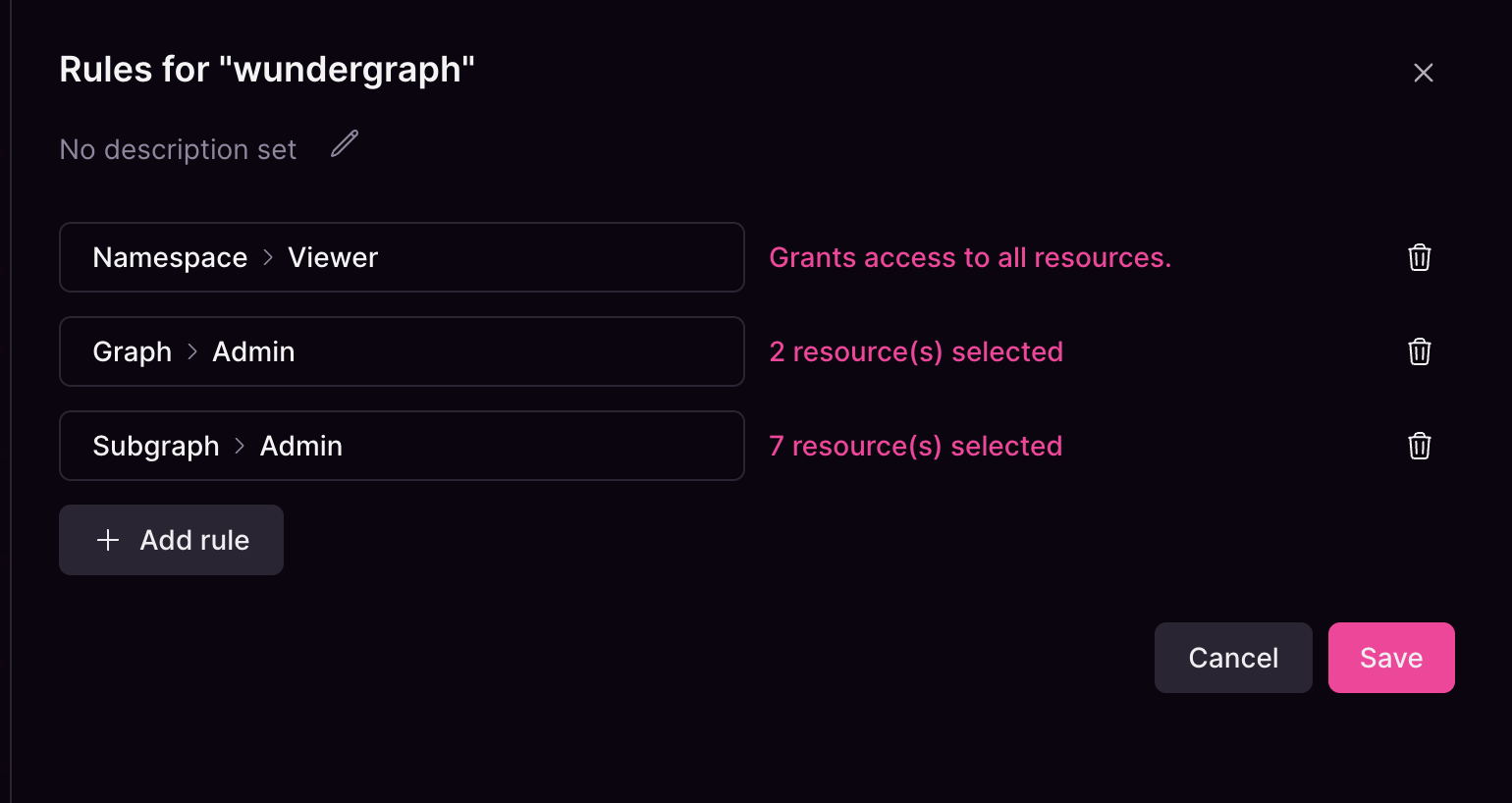 When a group rule doesn't have any explicit resources, the group will always have access to all resources within the organization.
In the same way, if a rule is limited to a single resource and that resource is deleted from the organization, the rule will fall back to granting access to all resources in the organization.
Unlike assigning specific resources, if a group doesn't have any rule assigned, this will result in the group effectively not having access to any resource.
## Roles
You can assign multiple roles to a group using the `Add rule` button. If no group rules are configured, group members will not have access to any resources.
When a group rule doesn't have any explicit resources, the group will always have access to all resources within the organization.
In the same way, if a rule is limited to a single resource and that resource is deleted from the organization, the rule will fall back to granting access to all resources in the organization.
Unlike assigning specific resources, if a group doesn't have any rule assigned, this will result in the group effectively not having access to any resource.
## Roles
You can assign multiple roles to a group using the `Add rule` button. If no group rules are configured, group members will not have access to any resources.
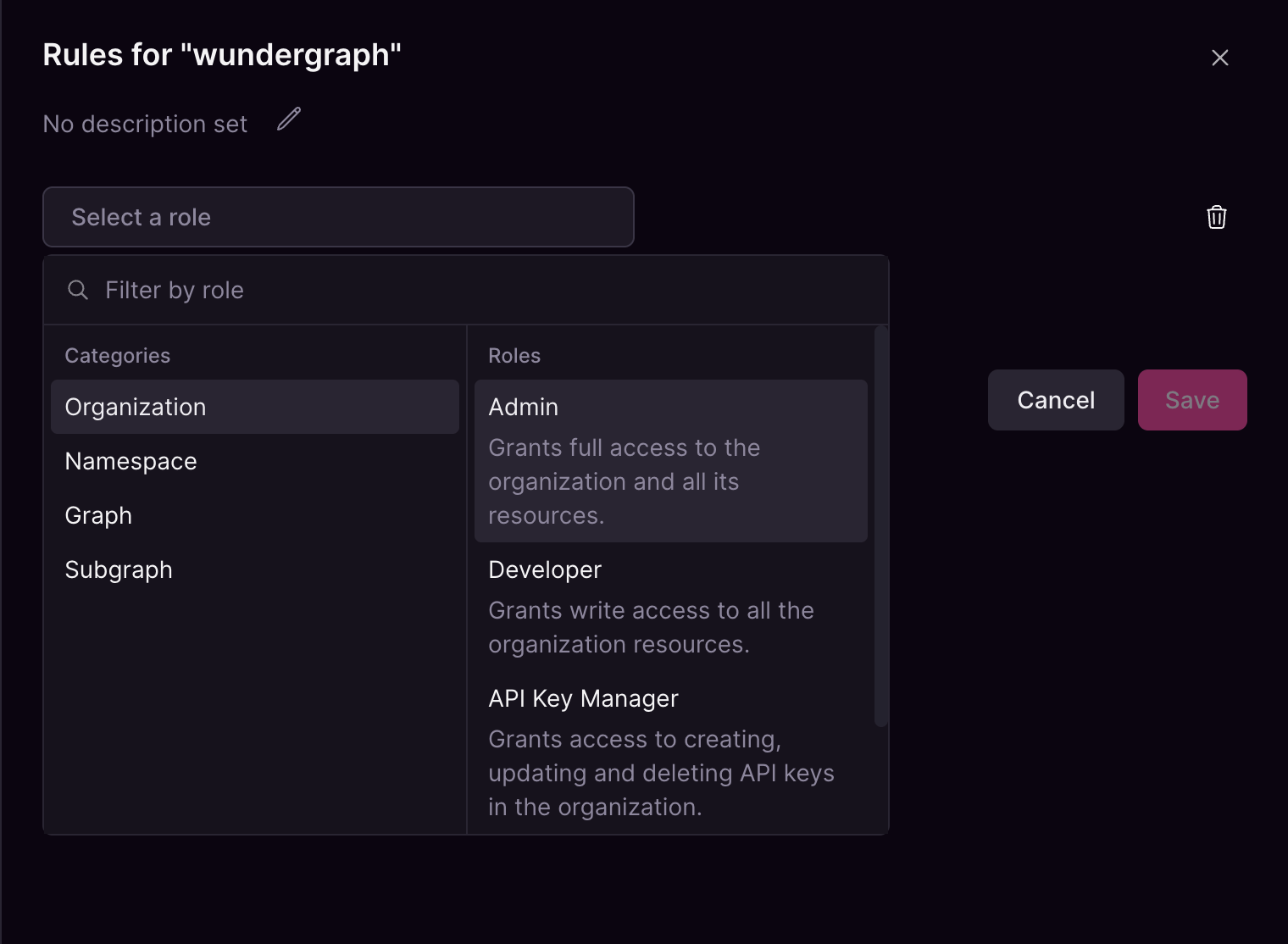 Each role type can only be added once per group. For example, you can assign the `Organization Admin` and `Organization Viewer` roles in the same group, but you cannot assign the same role type more than once. You could also add a `Graph Admin` role to that group, as long as each role type appears only once.
The order in which roles are assigned does not affect how access checks are performed. For example, given the following group:
Each role type can only be added once per group. For example, you can assign the `Organization Admin` and `Organization Viewer` roles in the same group, but you cannot assign the same role type more than once. You could also add a `Graph Admin` role to that group, as long as each role type appears only once.
The order in which roles are assigned does not affect how access checks are performed. For example, given the following group:
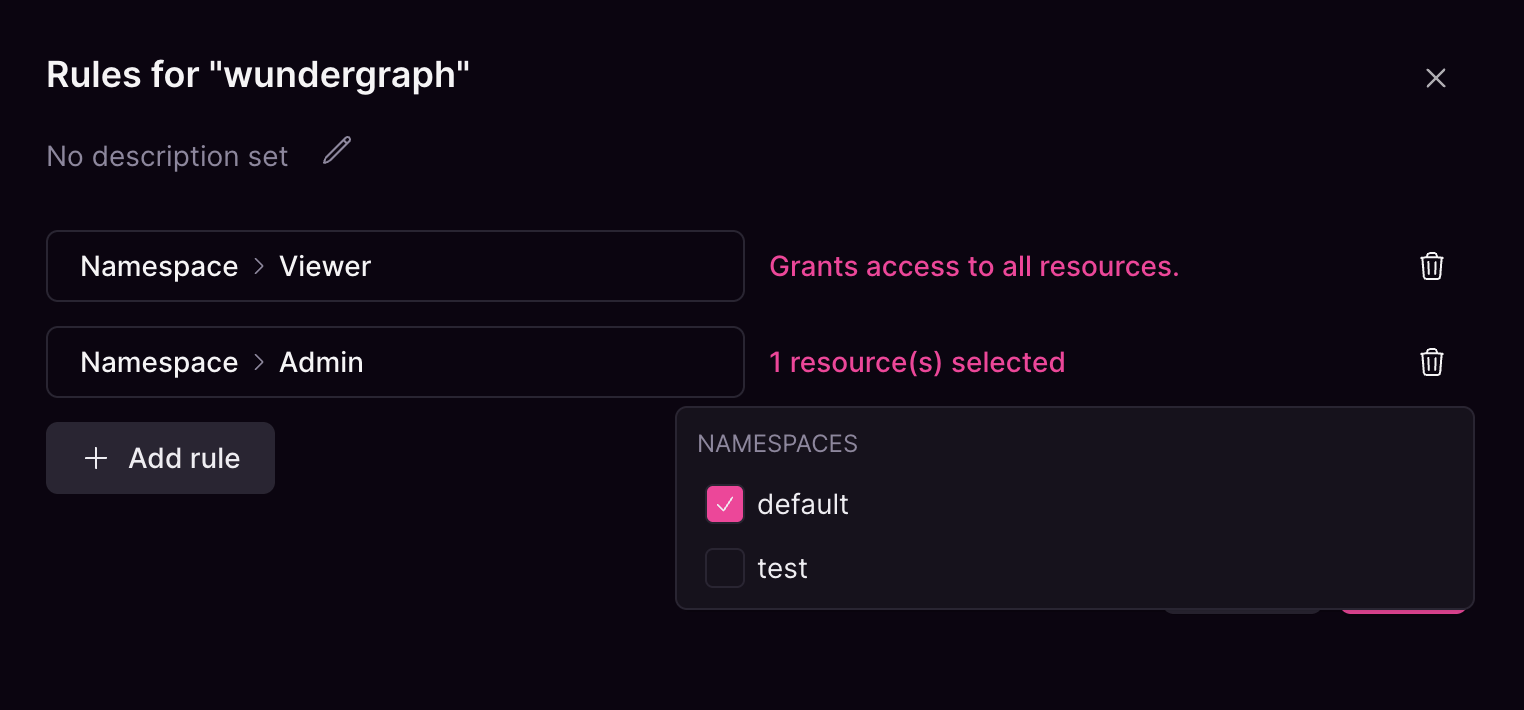 The members for this group will have **Admin** access to the `default` namespace and **Viewer** to the `test` and any other namespace that may exist in the organization.
If the namespace `default` is deleted, the **Admin** role is no longer scoped and will apply to all resources.
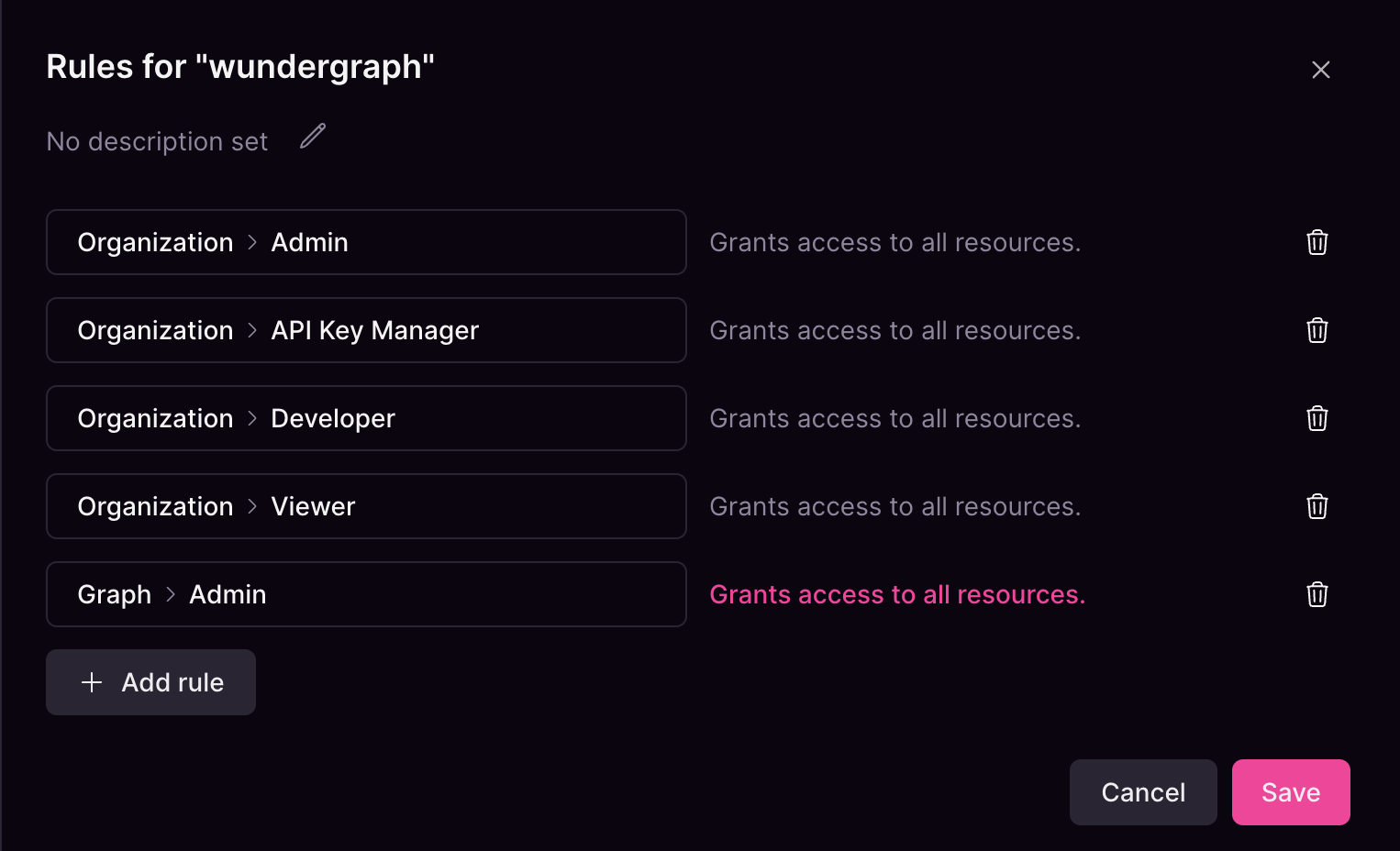
With this in mind, members of the following example will have **Organization Admin** access to all resources.
The members for this group will have **Admin** access to the `default` namespace and **Viewer** to the `test` and any other namespace that may exist in the organization.
If the namespace `default` is deleted, the **Admin** role is no longer scoped and will apply to all resources.
With this in mind, members of the following example will have **Organization Admin** access to all resources.
 ### Organization Roles
These roles apply at the organization level and cannot be limited to specific resources:
1. **Admin** — Full permissions to create and manage all services.
2. **Developer** — Read and write access to all organizational objects.
3. **API Key Manager** — Permissions to create, modify, and delete API keys.
4. **Viewer** — Read-only access to all organizational objects.
An organization **Developer** can manage namespaces and publish graphs. An **Admin** can do the same, plus manage organization-wide settings.
### Namespace Roles
1. **Admin** — Read and write access to assigned namespaces.
2. **Viewer** — Read-only access to assigned namespaces.
If no resources are assigned, the group is granted access to all namespaces in the organization. Groups with the **Admin** role will also be able to create new namespaces.
### Graph Roles
1. **Admin** — Read and write access to assigned graphs.
2. **Viewer** — Read-only access to assigned graphs.
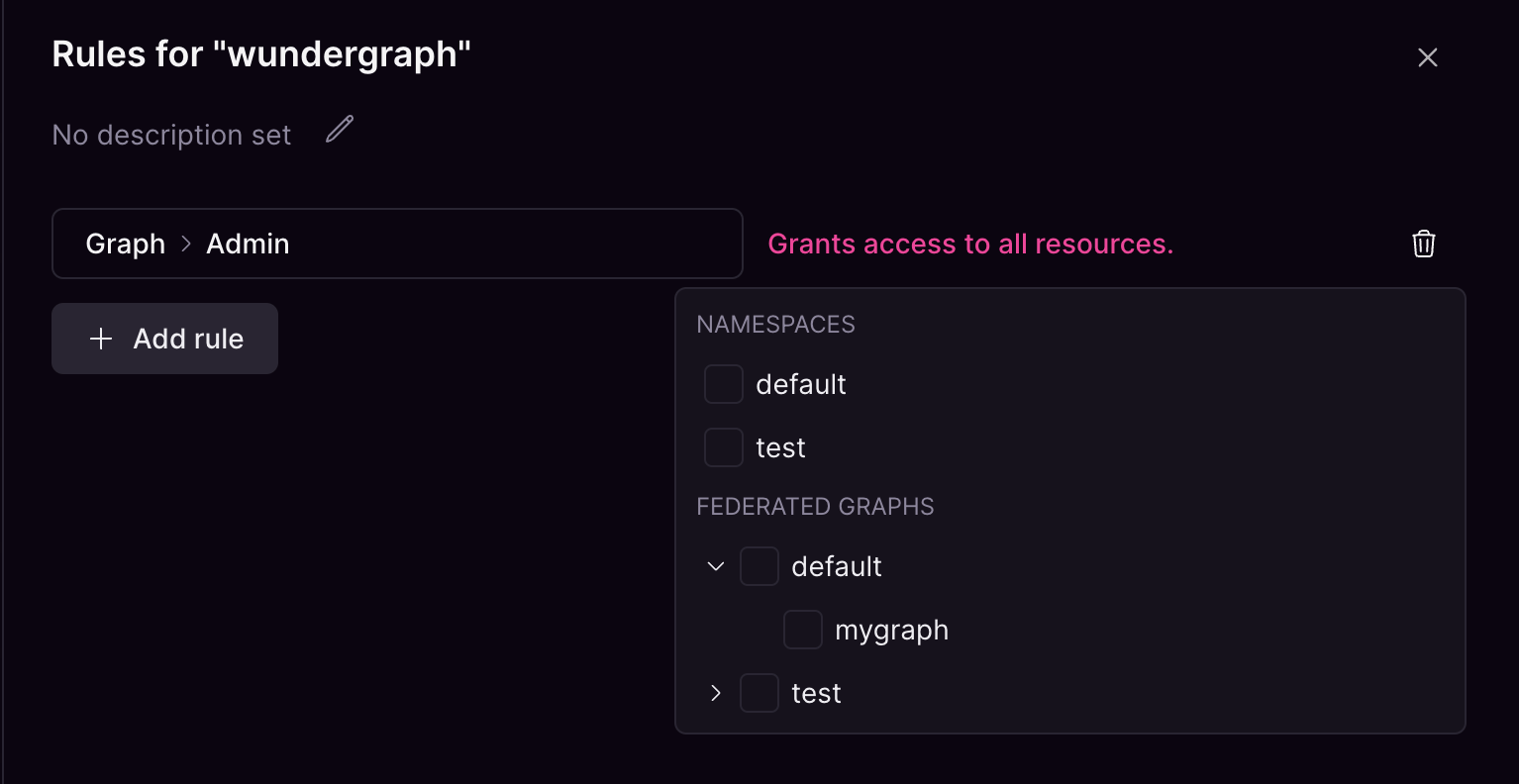
Graph resources can be assigned in one of two ways:
* **Namespace**: Grants access to all graphs within the selected namespace, including permission to create new graphs.
* **Specific graphs**: Limits access to only the selected graphs.
If no graphs are explicitly assigned, the group will have access to all graphs in the organization. Groups with the **Admin** role will also be able to create new graphs.
### Organization Roles
These roles apply at the organization level and cannot be limited to specific resources:
1. **Admin** — Full permissions to create and manage all services.
2. **Developer** — Read and write access to all organizational objects.
3. **API Key Manager** — Permissions to create, modify, and delete API keys.
4. **Viewer** — Read-only access to all organizational objects.
An organization **Developer** can manage namespaces and publish graphs. An **Admin** can do the same, plus manage organization-wide settings.
### Namespace Roles
1. **Admin** — Read and write access to assigned namespaces.
2. **Viewer** — Read-only access to assigned namespaces.
If no resources are assigned, the group is granted access to all namespaces in the organization. Groups with the **Admin** role will also be able to create new namespaces.
### Graph Roles
1. **Admin** — Read and write access to assigned graphs.
2. **Viewer** — Read-only access to assigned graphs.
Graph resources can be assigned in one of two ways:
* **Namespace**: Grants access to all graphs within the selected namespace, including permission to create new graphs.
* **Specific graphs**: Limits access to only the selected graphs.
If no graphs are explicitly assigned, the group will have access to all graphs in the organization. Groups with the **Admin** role will also be able to create new graphs.
 ### Subgraph Roles
1. **Admin** — Read and write access to assigned subgraphs.
2. **Publisher** — Read and write access to assigned subgraphs, but cannot create new ones.
3. **Checker** — Grants read-only access to subgraphs as well as the ability to create subgraph checks.
4. **Viewer** — Grants read-only access to subgraphs.
Subgraph resources can be assigned similarly:
* **Namespace**: Grants access to all subgraphs within the selected namespace, including permission to create new subgraphs.
* **Specific subgraphs**: Restricts access to only the selected subgraphs.
If no subgraph resources are assigned, the group will have access to all subgraphs in the organization.
## Resources
### Subgraph Roles
1. **Admin** — Read and write access to assigned subgraphs.
2. **Publisher** — Read and write access to assigned subgraphs, but cannot create new ones.
3. **Checker** — Grants read-only access to subgraphs as well as the ability to create subgraph checks.
4. **Viewer** — Grants read-only access to subgraphs.
Subgraph resources can be assigned similarly:
* **Namespace**: Grants access to all subgraphs within the selected namespace, including permission to create new subgraphs.
* **Specific subgraphs**: Restricts access to only the selected subgraphs.
If no subgraph resources are assigned, the group will have access to all subgraphs in the organization.
## Resources
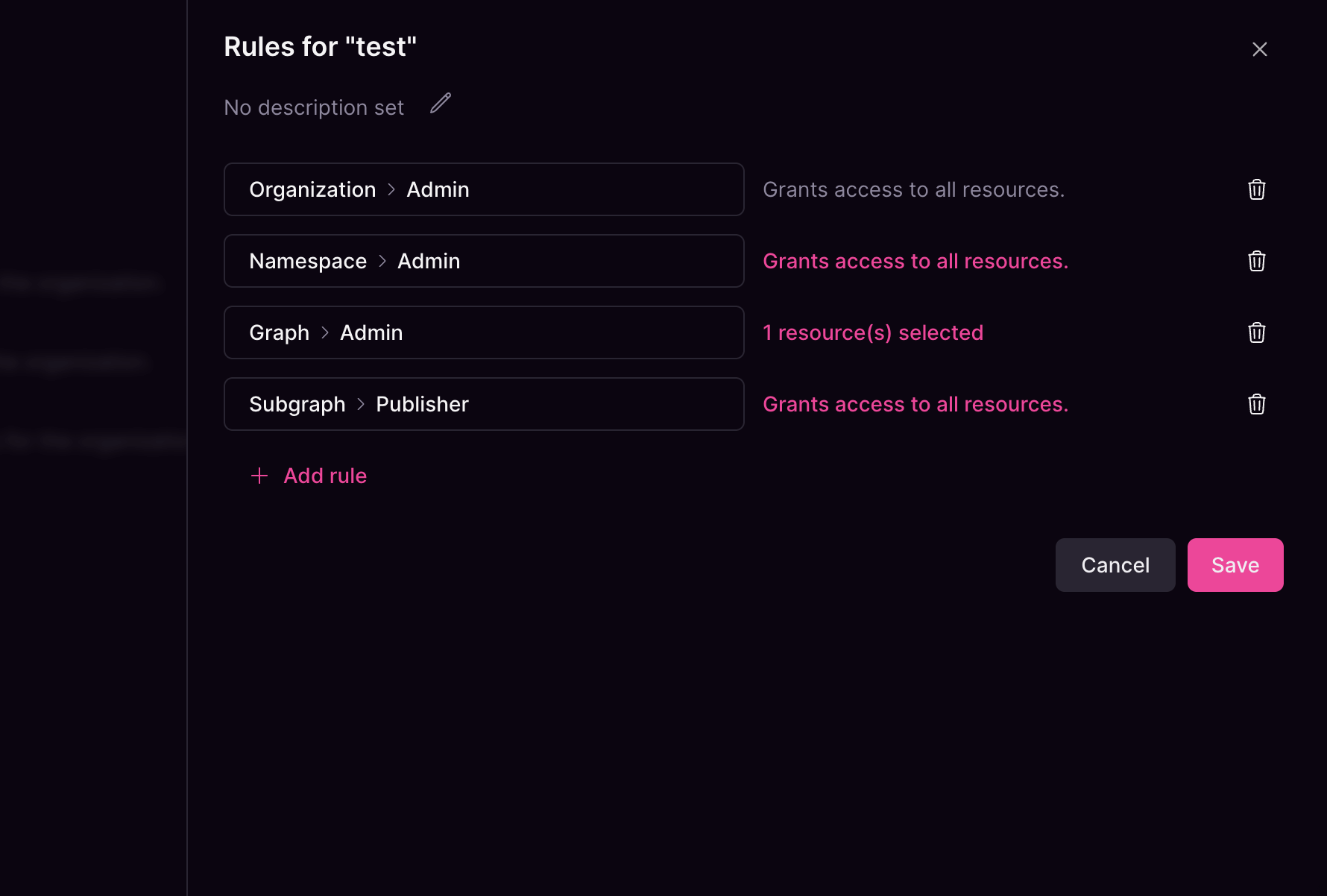 Resources represent entities in your organization, including but not limited to:
* Namespaces
* Federated Graphs
* Subgraphs
Resources represent entities in your organization, including but not limited to:
* Namespaces
* Federated Graphs
* Subgraphs