> ## Documentation Index
> Fetch the complete documentation index at: https://wundergraphinc-brendan-add-sof-link.mintlify.site/llms.txt
> Use this file to discover all available pages before exploring further.

# Migrate from Apollo

> Migrate from Apollo GraphOS to WunderGraph Cosmo with a single click

If you are a user of Apollo GraphOS with configured graphs, then you can migrate to WunderGraph Cosmo with a click of a button.
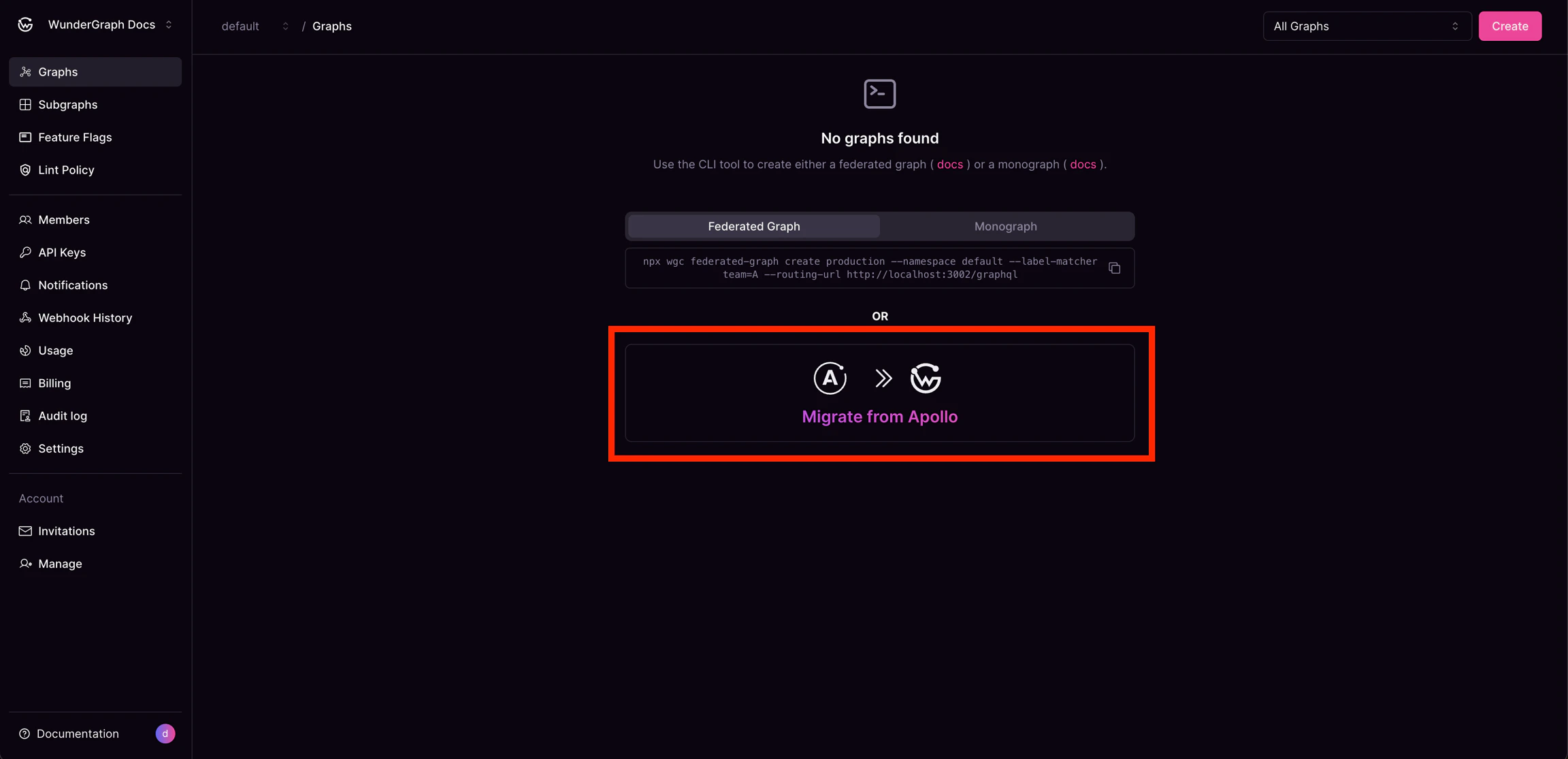
<Frame caption="Migrate from Apollo button">
  <img src="https://mintcdn.com/wundergraphinc-brendan-add-sof-link/znnH7GFKh4R4ntTv/images/studio/no-graphs-found-migrate-from-apollo.png?fit=max&auto=format&n=znnH7GFKh4R4ntTv&q=85&s=bb28e28497242697f0659f5d5a8bbb77" alt="WunderGraph Docs showing no graphs found with option to migrate from Apollo" title="No graphs found — migrate from Apollo" width="2304" height="1115" data-path="images/studio/no-graphs-found-migrate-from-apollo.png" />
</Frame>

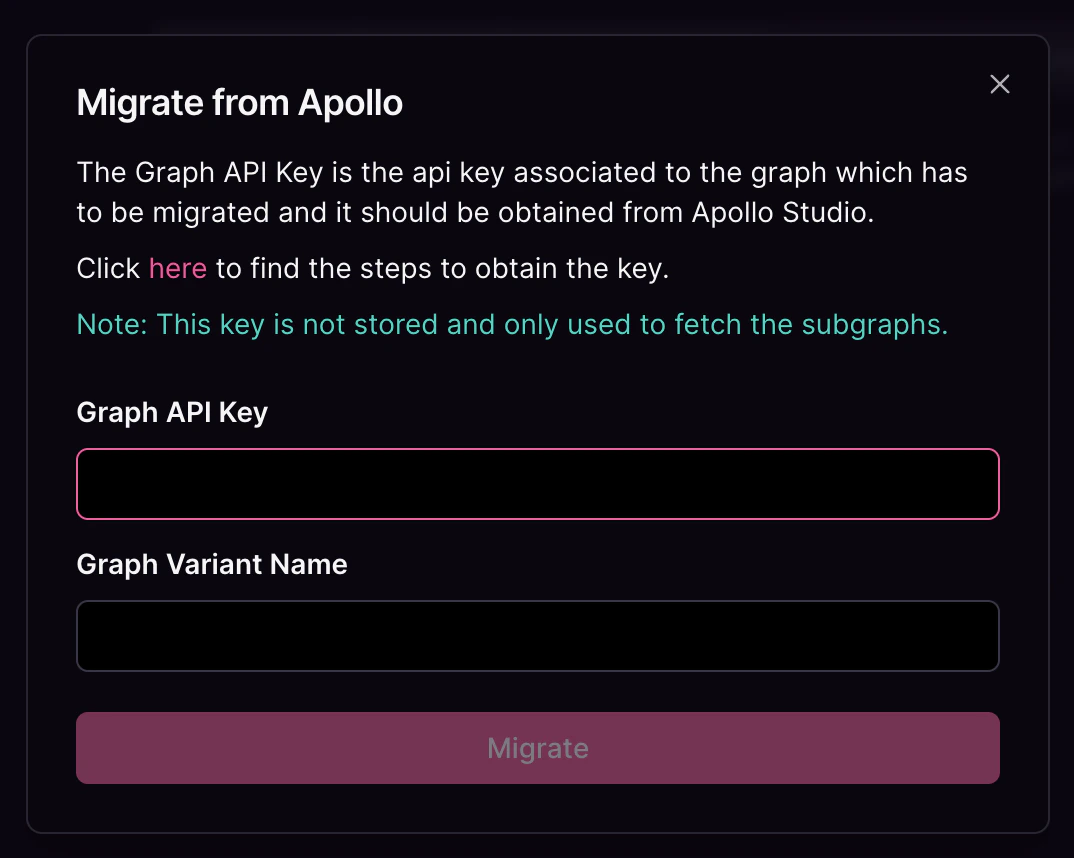
Once you have clicked on "Migrate from Apollo", a modal will appear. This modal will request your "Graph API Key" for the federated graph you wish to migrate.

<Info>
  Your API key is never saved nor stored; it is only temporarily used to fetch the necessary data for migration.
</Info>

### Steps to fetch the graph API key

<Steps>
  <Step title="Navigate to Apollo GraphOS Studio" />

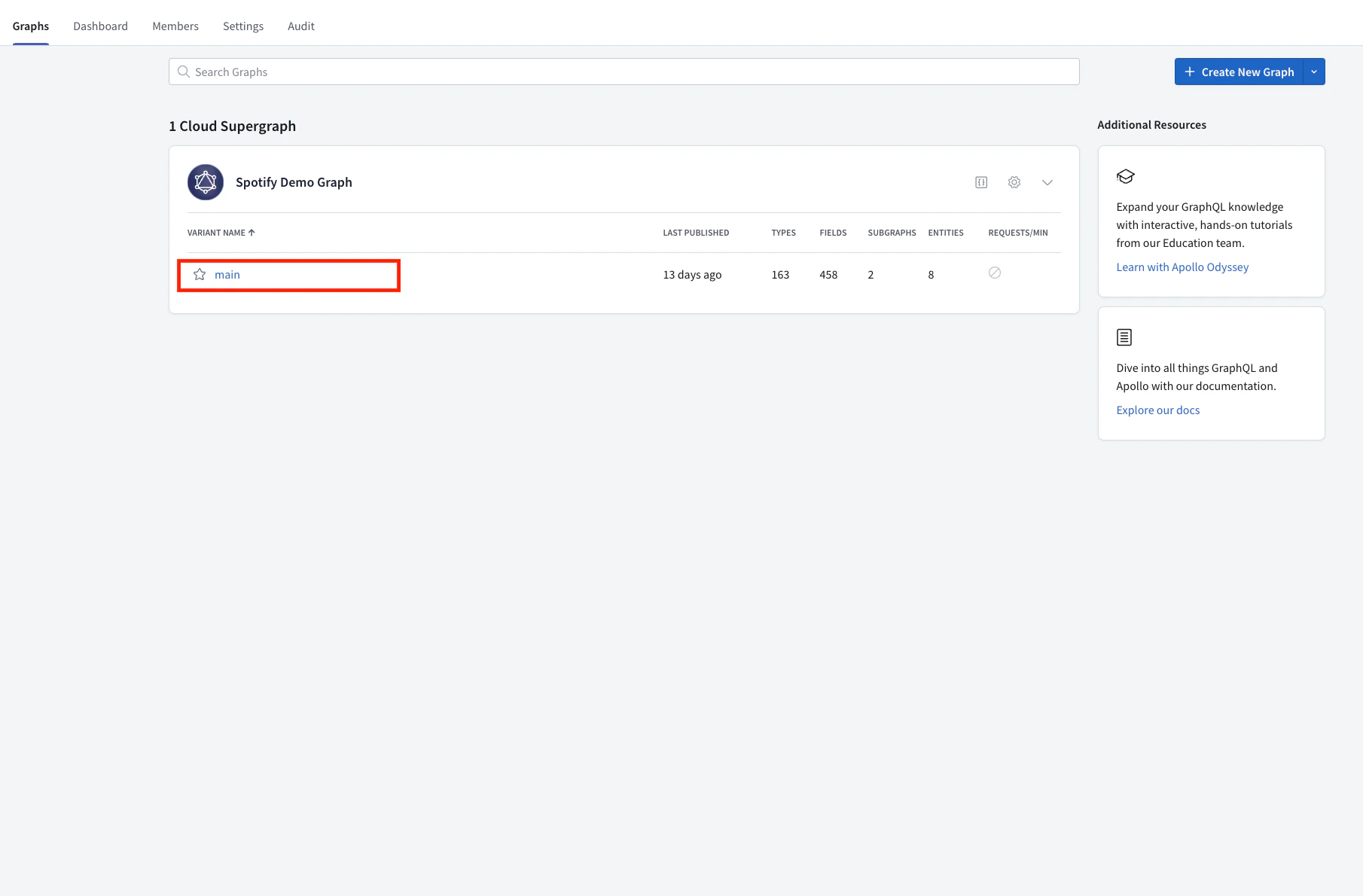
  <Step title="Select the graph that has to be migrated">
    <Frame>
      <img src="https://mintcdn.com/wundergraphinc-brendan-add-sof-link/znnH7GFKh4R4ntTv/images/studio/cloud-supergraph-section-overview.png?fit=max&auto=format&n=znnH7GFKh4R4ntTv&q=85&s=d50bea50bf2a8340334e5379b87dee4a" alt="Cosmo Docs cloud supergraph section with main variant and graph search bar" title="Cloud Supergraph section overview" width="1810" height="1190" data-path="images/studio/cloud-supergraph-section-overview.png" />
    </Frame>
  </Step>

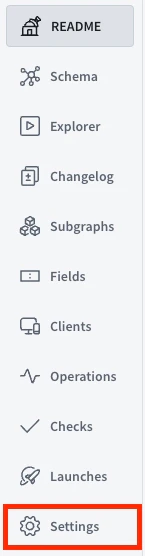
  <Step title="Navigate to the settings page of the graph">
    <Frame>
      <img src="https://mintcdn.com/wundergraphinc-brendan-add-sof-link/lp_f9DXOip40YgZM/images/studio/settings-option-in-operations-section.png?fit=max&auto=format&n=lp_f9DXOip40YgZM&q=85&s=222567915f8e7176f1f6dd489259eb7a" alt="Cosmo Docs user interface showing settings option in operations section" title="Settings option in operations section" width="145" height="556" data-path="images/studio/settings-option-in-operations-section.png" />
    </Frame>
  </Step>

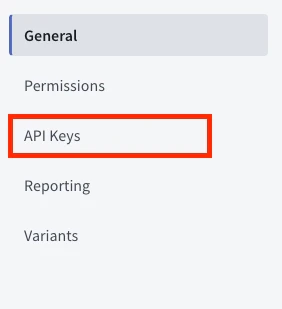
  <Step title="Navigate to the 'This Graph' tab and click on API Keys">
    <Frame>
      <img src="https://mintcdn.com/wundergraphinc-brendan-add-sof-link/znnH7GFKh4R4ntTv/images/studio/build-variant-settings-this-graph.png?fit=max&auto=format&n=znnH7GFKh4R4ntTv&q=85&s=a1d706081a29debb6c4c327879bb03d1" alt="Cosmo Docs settings page for build variant with This Graph tab highlighted" title="Build variant settings — This Graph" width="2304" height="267" data-path="images/studio/build-variant-settings-this-graph.png" />
    </Frame>

    <br />

    <Frame>
      <img src="https://mintcdn.com/wundergraphinc-brendan-add-sof-link/znnH7GFKh4R4ntTv/images/studio/api-keys-highlighted-in-general-settings.png?fit=max&auto=format&n=znnH7GFKh4R4ntTv&q=85&s=1e46ddf7c2b7b3dbf5e884e649cbcfe7" alt="General settings section showing API Keys highlighted as current selection" title="API Keys highlighted in general settings" width="282" height="309" data-path="images/studio/api-keys-highlighted-in-general-settings.png" />
    </Frame>
  </Step>

  <Step title="Create a new key and copy">
    <Frame>
      <img src="https://mintcdn.com/wundergraphinc-brendan-add-sof-link/znnH7GFKh4R4ntTv/images/studio/create-api-key-for-spotify-demo-graph.png?fit=max&auto=format&n=znnH7GFKh4R4ntTv&q=85&s=36ca808d048fb2bbe04629c45c979525" alt="Create API key for Spotify Demo Graph to uniquely identify data" title="Create API key for Spotify Demo Graph" width="2102" height="103" data-path="images/studio/create-api-key-for-spotify-demo-graph.png" />
    </Frame>

    <br />

    <Frame caption="Migrate from Apollo modal">
      <img src="https://mintcdn.com/wundergraphinc-brendan-add-sof-link/znnH7GFKh4R4ntTv/images/studio/apollo-migration-page-with-api-key-fields.png?fit=max&auto=format&n=znnH7GFKh4R4ntTv&q=85&s=bbdcb794c15804dc3c45aed803973eec" alt="Cosmo Docs migration modal showing Graph API Key and Variant Name fields" title="Apollo migration page with API key fields" width="1074" height="858" data-path="images/studio/apollo-migration-page-with-api-key-fields.png" />
    </Frame>
  </Step>
</Steps>

Once you have acquired the key, paste the key into the Graph API Key input, type the name of the variant to be migrated into the Graph Variant Name input and click on the "Migrate" button.

That's it! After a few seconds, your graphs will have been successfully migrated to WunderGraph Cosmo.