> ## Documentation Index
> Fetch the complete documentation index at: https://wundergraphinc-brendan-add-sof-link.mintlify.site/llms.txt
> Use this file to discover all available pages before exploring further.
# Custom Scripts
> Run scripts before or after executing operations in the playground for authentication, validation and other workflows
Create one or more scripts to handle various stages of the request lifecycle for your operations. Incorporate functionality for working with external APIs, authentication tokens, utilizing environment variables, and injecting headers as needed.
## Script Types
* **Pre-Flight Scripts**: This script runs across all instances of the playground and its various tabs. It executes first, before the request is sent to the router. Use pre-flight scripts to set headers or perform authentication workflows. These scripts are enabled by default.
* **Operation Scripts**: These scripts run either before or after executing an operation and are scoped to a single tab in the playground. By default, they are disabled.
* **Pre-Operation Scripts**: Executed after the pre-flight script but before the request reaches the router, these scripts function similarly to pre-flight scripts but are applied on a per-operation basis.
* **Post-Operation Scripts**: These scripts run after the operation completes. Here, you can access the response body and perform any necessary validation steps.
### Execution Lifecycle
Below depicts the execution lifecycle with operation and scripts configured
## Creating and running scripts
You can create multiple scripts of each type and select the appropriate one as needed. All created scripts are accessible at the account level; however, scripts selected for use are scoped specifically to your device or browser.
Scripts are stored in plain text in the database, so avoid including any sensitive information directly in the script. For sensitive data, use environment variables instead, as these are scoped to your device or browser.
To configure scripts for your operations, follow these steps:
In the playground, locate the script editor in the bottom-left corner. Here, you can edit **Pre-Flight Scripts** and, under the **Operation Scripts** tab (next to **Variables** and **Headers**), configure operation scripts for the active tab.
Click on the** edit icon** to modify the script. A modal will open, with a **Create** button, allowing you to create a new script within your organization.
Input your script code in the editor. To test it, run the script directly in the console. You can also manage environment variables using the **Environment Variables** editor, which is formatted in JSON.
Click **Use Script** to set it as the script to be used.
Once the modal closes, ensure that the checkbox next to the script is ticked to enable it.
With the script configured and enabled, proceed to run your operation.
## API Reference
| API | Description |
| -------------------------------------------------------------------------------------------------------------- | ---------------------------------------------------------------------------------------------------------------------------------- |
| `playground.env.set(name: string, value: any): void` | Sets a local environment variable with a specified `key` (`name`) and `value`. |
| `playground.env.get(name: string): JSONValue` | Retrieves the value of a local environment variable using the `key` (`name`). |
| `playground.request.body: { query: string; variables?: { [key: string]: JSONValue }; operationName?: string }` | Represents the GraphQL request body. Contains the `query` string, an optional `variables` object, and an optional `operationName`. |
| `playground.response.body?.data?: T` | Holds the `data` returned from the GraphQL operation within the response body, where `data` is of a generic type `T`. |
| `playground.CryptoJS: typeof import("crypto-js")` | Exposes the `crypto-js` library, allowing for cryptographic operations. |
## Environment Variables
Environment variables are local key-value pairs stored as JSON within your browser. Since scripts are stored in plain text, sensitive information should not be embedded directly in the script; instead, use environment variables for this purpose. You can edit and manage these variables through the script editor.
### Usage in Headers
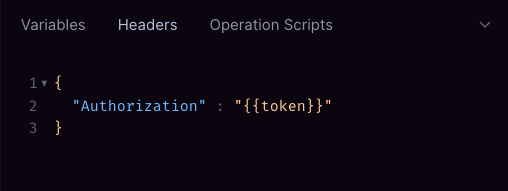
In the playground's **Headers** tab, you can reference an environment variable by using the syntax `{{key}}`. The playground will replace `{{key}}` with the corresponding value from the environment variables before executing your operation.
## Examples
### Accessing Environment Variables
Retrieve environment variables that can be defined in the script window or set using the `set` command.
```bash theme={null}
const apiKey = playground.env.get("apiKey");
```
### Setting Environment Variables
This example illustrates how to assign a value as an environment variable, making it accessible to other scripts or headers. In this case, the authentication token is stored for later use.
```bash theme={null}
const clientSecret = playground.env.get("clientSecret");
const clientId = playground.env.get("clientId");
const response = await fetch('https://api.example.com/auth/token', {
method: 'POST',
headers: { 'Content-Type': 'application/json' },
body: JSON.stringify({
clientId,
clientSecret,
})
});
const data = await response.json();
playground.env.set('token', data.token);
```
### Logging Request Metadata
Log the metadata of a request, including the request body, operation name, and query, for debugging purposes.
```bash theme={null}
console.log(playground.request.body.variables)
console.log(playground.request.body.operationName)
console.log(playground.request.body.query)
```
### Validating the Response
Use this post-operation script to validate the response of an operation and ensure it meets expectations.
```bash theme={null}
const responseBody = playground.response.body
if (responseBody.data.user) {
console.warn('User not found in response');
} else {
console.log('Operation completed successfully');
}
```
### Transform and log Response
This example demonstrates how to access, modify, and log the operation response. The transformation includes anonymizing sensitive data, such as obfuscating a user's email address.
```bash theme={null}
const responseBody = playground.response.body;
if (responseBody.data && responseBody.data.user) {
// Obfuscate the user's email by replacing the domain
responseBody.data.user.email = `***`;
console.log('Transformed response:', responseBody);
} else {
console.warn('User not found in response');
}
```
### Using Cryptography functions
Scripts support the use of CryptoJS, which provides convenient cryptographic methods to enhance your scripts securely.
```bash theme={null}
const encryptedToken = playground.env.get('refreshToken'); // Encoded refresh token
const secretKey = playground.env.get('encryptionKey');
// Decode the token
const decryptedBytes = playground.CryptoJS.AES.decrypt(encryptedToken, secretKey);
const decodedToken = decryptedBytes.toString(CryptoJS.enc.Utf8);
const tokenData = JSON.parse(decodedToken);
const tokenExpiry = tokenData.exp * 1000;
console.log(tokenExpiry)
```
 ## Creating and running scripts
You can create multiple scripts of each type and select the appropriate one as needed. All created scripts are accessible at the account level; however, scripts selected for use are scoped specifically to your device or browser.
## Creating and running scripts
You can create multiple scripts of each type and select the appropriate one as needed. All created scripts are accessible at the account level; however, scripts selected for use are scoped specifically to your device or browser.
 ## Examples
### Accessing Environment Variables
Retrieve environment variables that can be defined in the script window or set using the `set` command.
```bash theme={null}
const apiKey = playground.env.get("apiKey");
```
### Setting Environment Variables
This example illustrates how to assign a value as an environment variable, making it accessible to other scripts or headers. In this case, the authentication token is stored for later use.
```bash theme={null}
const clientSecret = playground.env.get("clientSecret");
const clientId = playground.env.get("clientId");
const response = await fetch('https://api.example.com/auth/token', {
method: 'POST',
headers: { 'Content-Type': 'application/json' },
body: JSON.stringify({
clientId,
clientSecret,
})
});
const data = await response.json();
playground.env.set('token', data.token);
```
### Logging Request Metadata
Log the metadata of a request, including the request body, operation name, and query, for debugging purposes.
```bash theme={null}
console.log(playground.request.body.variables)
console.log(playground.request.body.operationName)
console.log(playground.request.body.query)
```
### Validating the Response
Use this post-operation script to validate the response of an operation and ensure it meets expectations.
```bash theme={null}
const responseBody = playground.response.body
if (responseBody.data.user) {
console.warn('User not found in response');
} else {
console.log('Operation completed successfully');
}
```
### Transform and log Response
This example demonstrates how to access, modify, and log the operation response. The transformation includes anonymizing sensitive data, such as obfuscating a user's email address.
```bash theme={null}
const responseBody = playground.response.body;
if (responseBody.data && responseBody.data.user) {
// Obfuscate the user's email by replacing the domain
responseBody.data.user.email = `***`;
console.log('Transformed response:', responseBody);
} else {
console.warn('User not found in response');
}
```
### Using Cryptography functions
Scripts support the use of CryptoJS, which provides convenient cryptographic methods to enhance your scripts securely.
```bash theme={null}
const encryptedToken = playground.env.get('refreshToken'); // Encoded refresh token
const secretKey = playground.env.get('encryptionKey');
// Decode the token
const decryptedBytes = playground.CryptoJS.AES.decrypt(encryptedToken, secretKey);
const decodedToken = decryptedBytes.toString(CryptoJS.enc.Utf8);
const tokenData = JSON.parse(decodedToken);
const tokenExpiry = tokenData.exp * 1000;
console.log(tokenExpiry)
```
## Examples
### Accessing Environment Variables
Retrieve environment variables that can be defined in the script window or set using the `set` command.
```bash theme={null}
const apiKey = playground.env.get("apiKey");
```
### Setting Environment Variables
This example illustrates how to assign a value as an environment variable, making it accessible to other scripts or headers. In this case, the authentication token is stored for later use.
```bash theme={null}
const clientSecret = playground.env.get("clientSecret");
const clientId = playground.env.get("clientId");
const response = await fetch('https://api.example.com/auth/token', {
method: 'POST',
headers: { 'Content-Type': 'application/json' },
body: JSON.stringify({
clientId,
clientSecret,
})
});
const data = await response.json();
playground.env.set('token', data.token);
```
### Logging Request Metadata
Log the metadata of a request, including the request body, operation name, and query, for debugging purposes.
```bash theme={null}
console.log(playground.request.body.variables)
console.log(playground.request.body.operationName)
console.log(playground.request.body.query)
```
### Validating the Response
Use this post-operation script to validate the response of an operation and ensure it meets expectations.
```bash theme={null}
const responseBody = playground.response.body
if (responseBody.data.user) {
console.warn('User not found in response');
} else {
console.log('Operation completed successfully');
}
```
### Transform and log Response
This example demonstrates how to access, modify, and log the operation response. The transformation includes anonymizing sensitive data, such as obfuscating a user's email address.
```bash theme={null}
const responseBody = playground.response.body;
if (responseBody.data && responseBody.data.user) {
// Obfuscate the user's email by replacing the domain
responseBody.data.user.email = `***`;
console.log('Transformed response:', responseBody);
} else {
console.warn('User not found in response');
}
```
### Using Cryptography functions
Scripts support the use of CryptoJS, which provides convenient cryptographic methods to enhance your scripts securely.
```bash theme={null}
const encryptedToken = playground.env.get('refreshToken'); // Encoded refresh token
const secretKey = playground.env.get('encryptionKey');
// Decode the token
const decryptedBytes = playground.CryptoJS.AES.decrypt(encryptedToken, secretKey);
const decodedToken = decryptedBytes.toString(CryptoJS.enc.Utf8);
const tokenData = JSON.parse(decodedToken);
const tokenExpiry = tokenData.exp * 1000;
console.log(tokenExpiry)
```