> ## Documentation Index
> Fetch the complete documentation index at: https://wundergraphinc-brendan-add-sof-link.mintlify.site/llms.txt
> Use this file to discover all available pages before exploring further.
# Microsoft Entra
> Setting up SSO with Microsoft Entra
### Steps to set Entra as an OIDC identity provider:-
Log in to Microsoft Entra and navigate to the **Identity/Applications/Enterprise applications** view within Microsoft Entra.
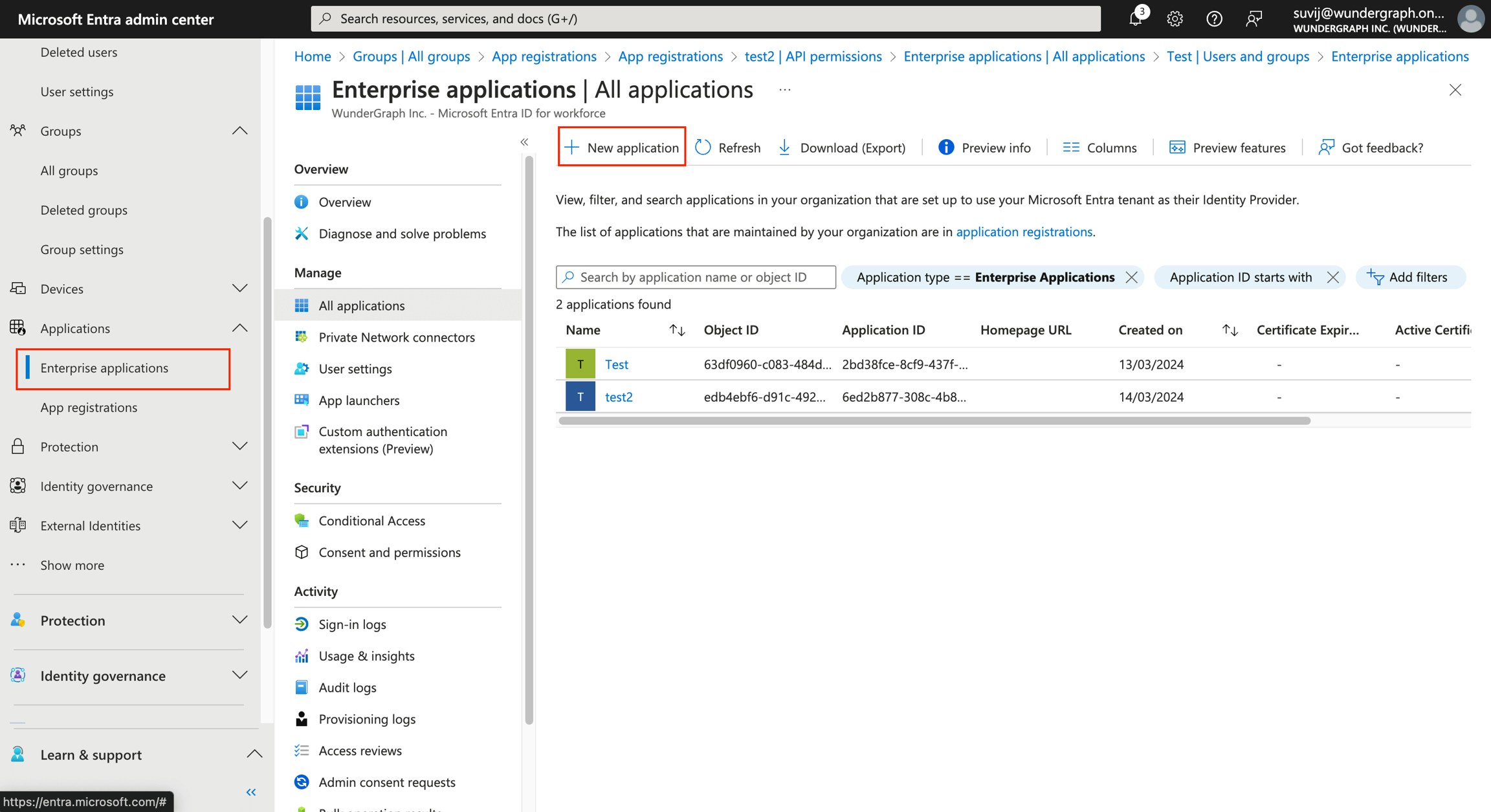 Click on **New application.**
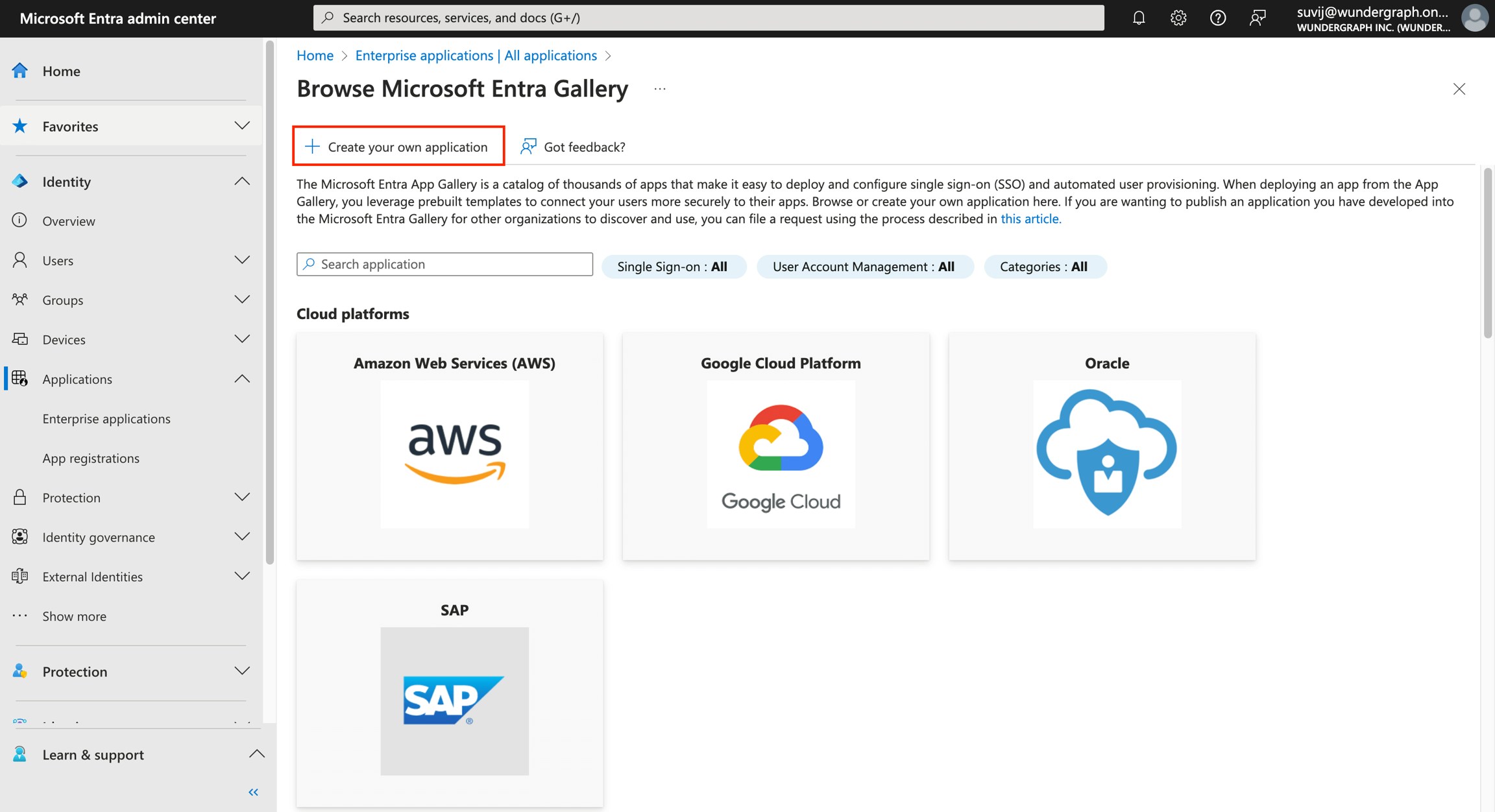
Once navigated to a new page, click on **Create your own application**.
Click on **New application.**
Once navigated to a new page, click on **Create your own application**.
 Provide a name to the application and select "**Register an application to integrate with Microsoft Entra ID (App you're developing)**" for the application purpose, then click on the **Create** button.
Select who can use the application from the given options according to your needs and then click on **Register.**
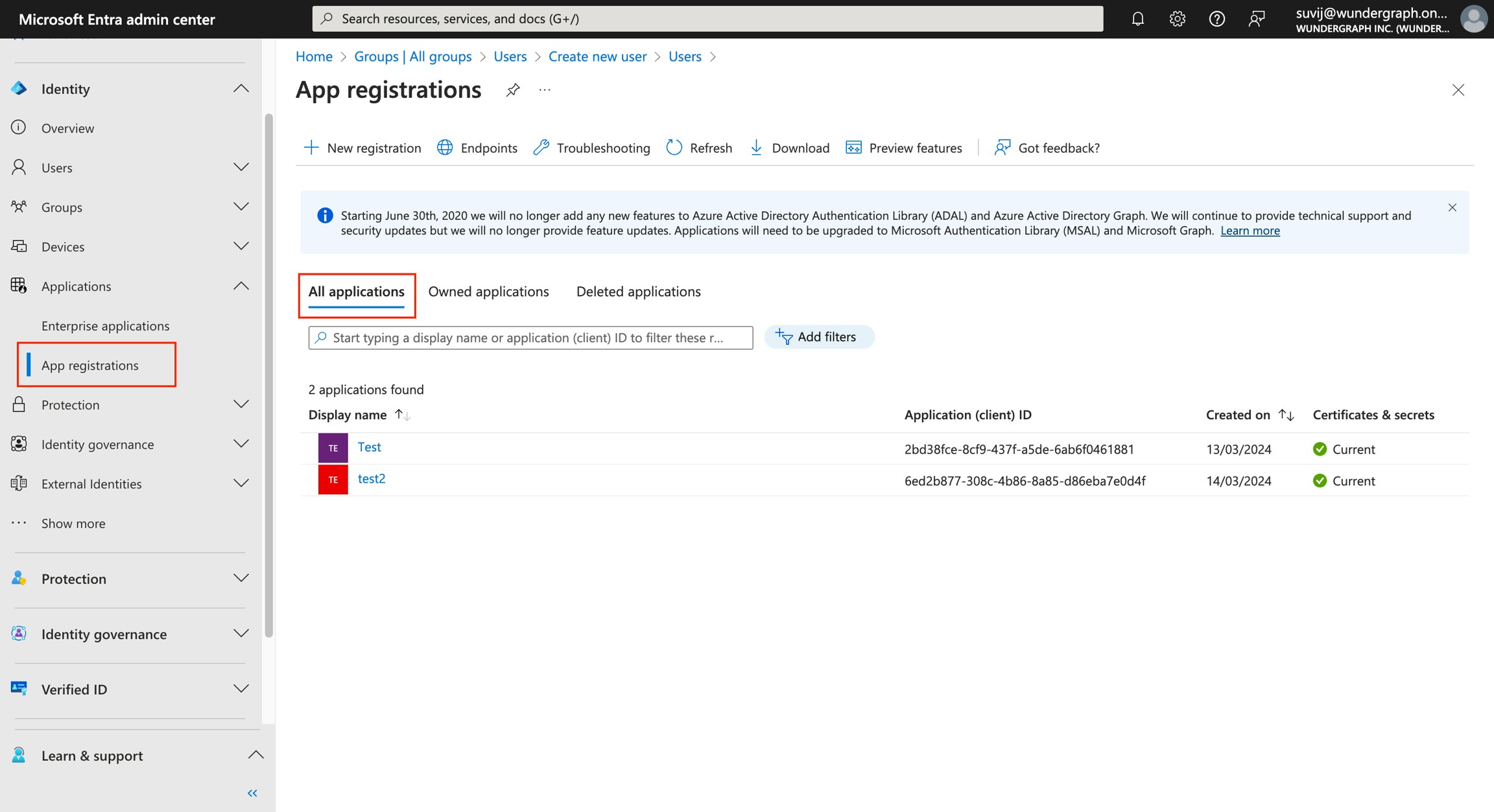
Now navigate to **Identity/Applications/App registrations.**
In the **All applications tab,** select the application which we created.
Provide a name to the application and select "**Register an application to integrate with Microsoft Entra ID (App you're developing)**" for the application purpose, then click on the **Create** button.
Select who can use the application from the given options according to your needs and then click on **Register.**
Now navigate to **Identity/Applications/App registrations.**
In the **All applications tab,** select the application which we created.
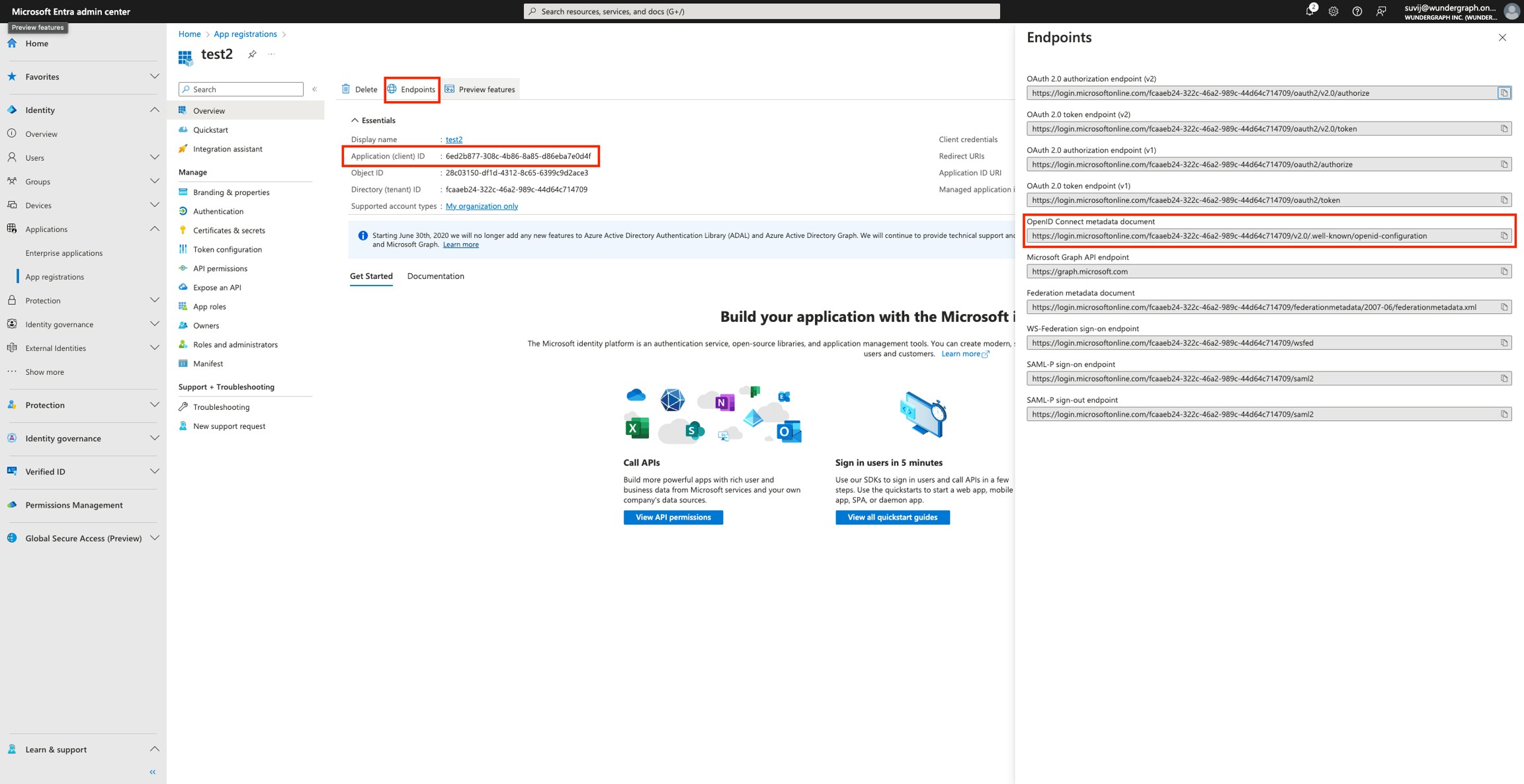
 Copy the Application(Client) ID, then click on **Endpoints** and then copy the **OpenID Connect metadata document**(Discovery Endpoint).
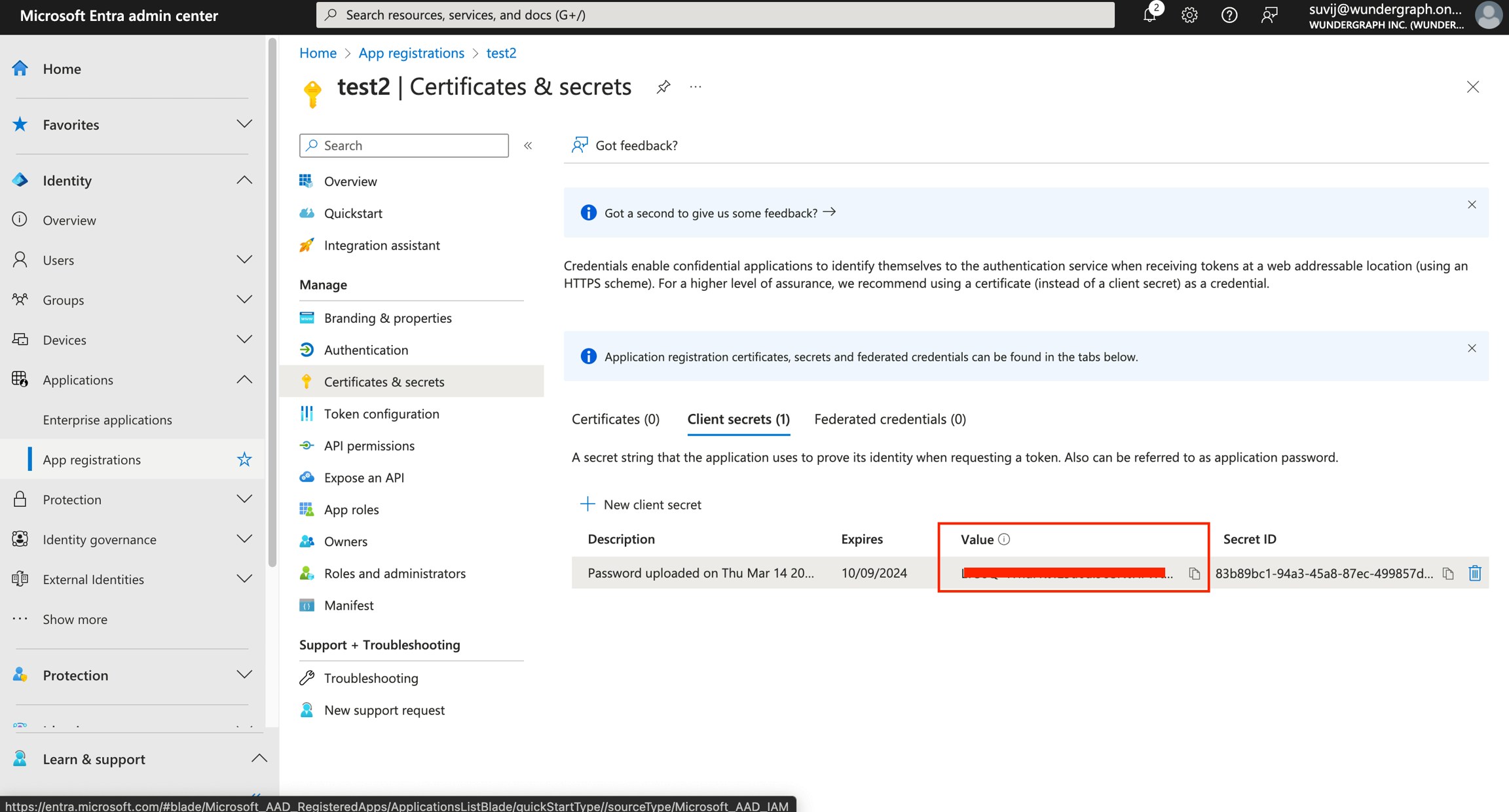
 Navigate to **Certificates and Secrets.**
Click on **New client secret,** give it a description and select the expiry according to your needs and then click on **Add**.
Copy the **value(client secret)** and store it, as it won't be shown again.
Navigate to **Certificates and Secrets.**
Click on **New client secret,** give it a description and select the expiry according to your needs and then click on **Add**.
Copy the **value(client secret)** and store it, as it won't be shown again.
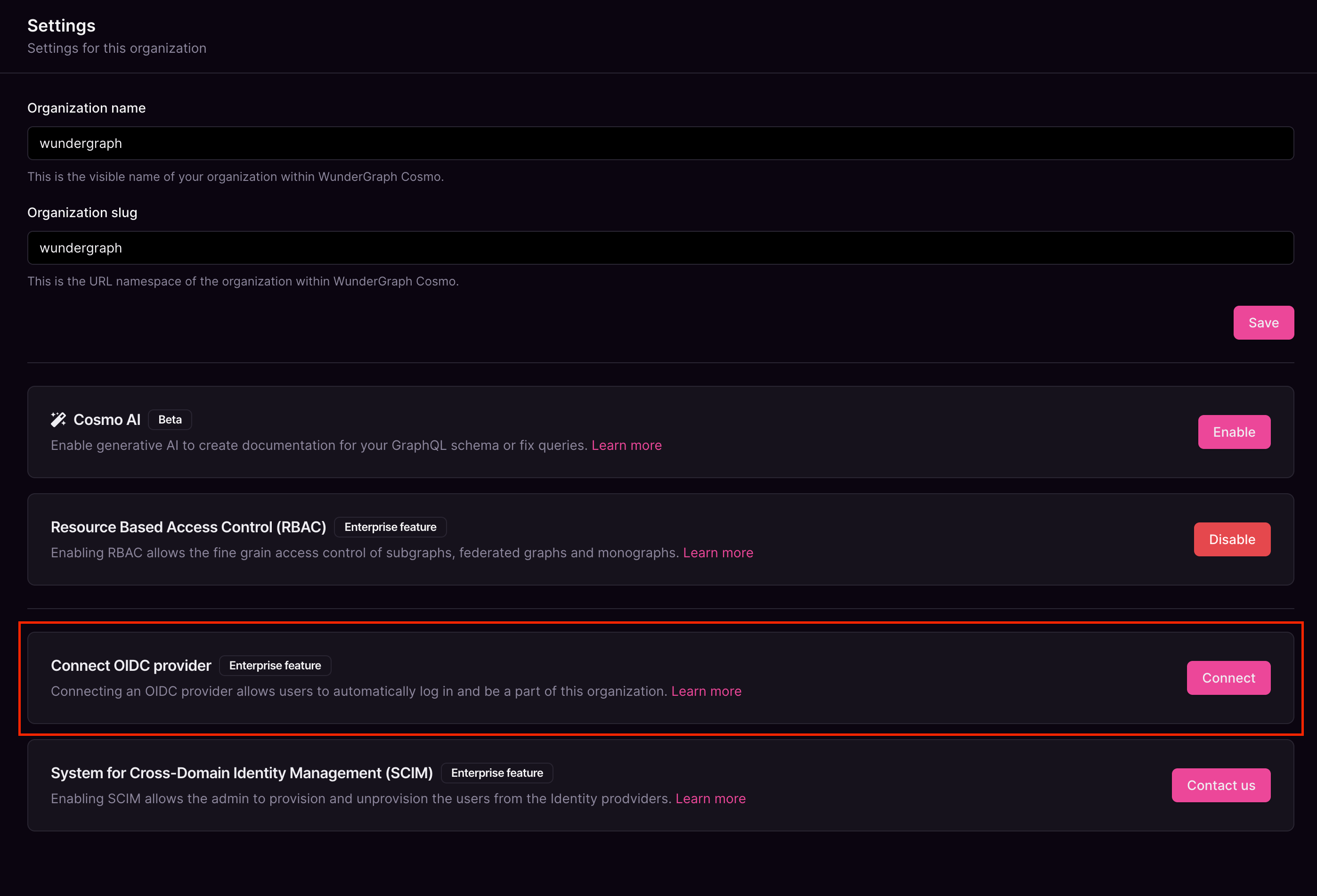
 Navigate to the settings page on Cosmo.
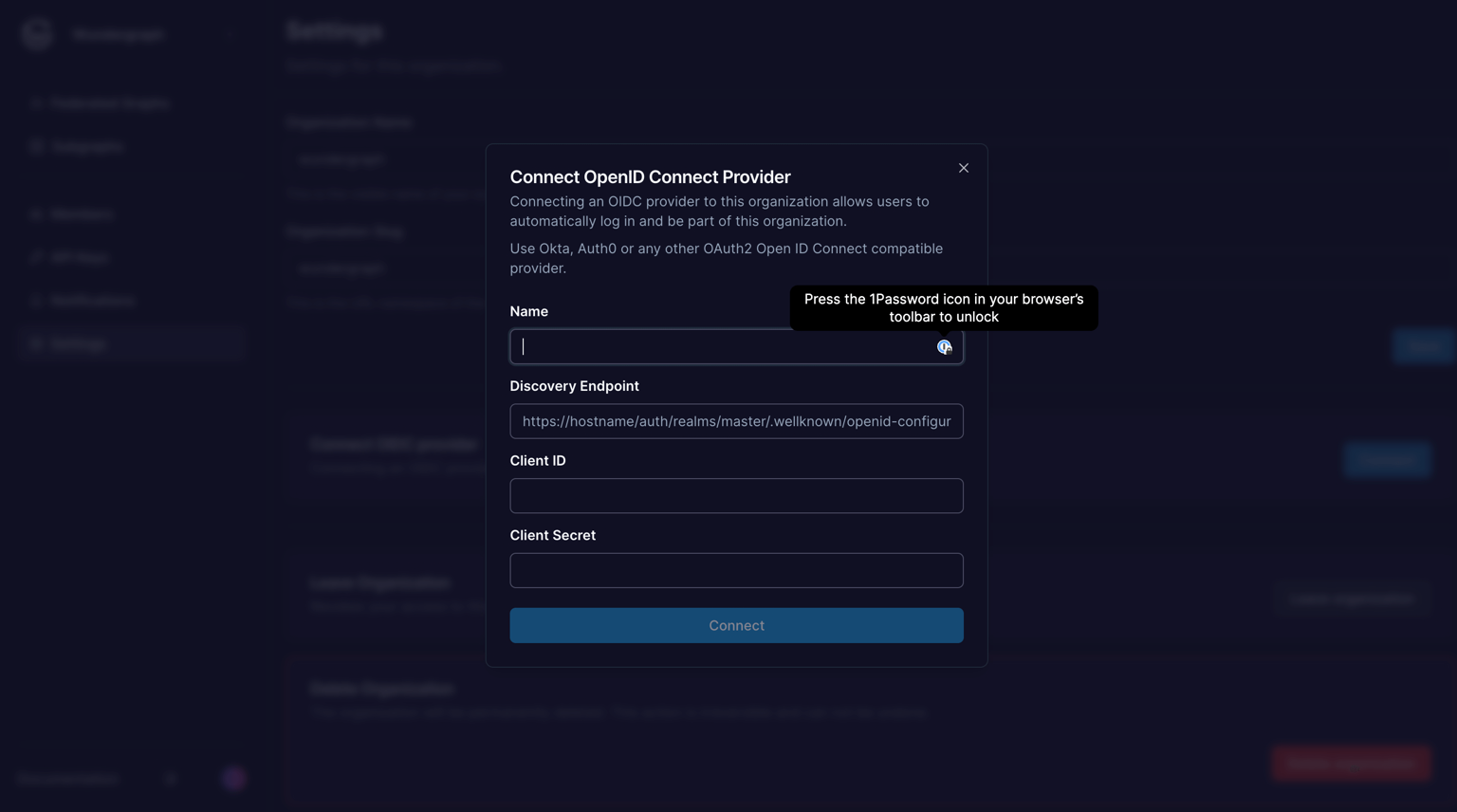
 Give the connection a name, paste the **OpenID Connect metadata document** copied before, into the **Discovery Endpoint,** paste the **Client ID** and **Client secret** copied before into the **Client ID** and **Client Secret fields respectively,** and then click on **Connect.**
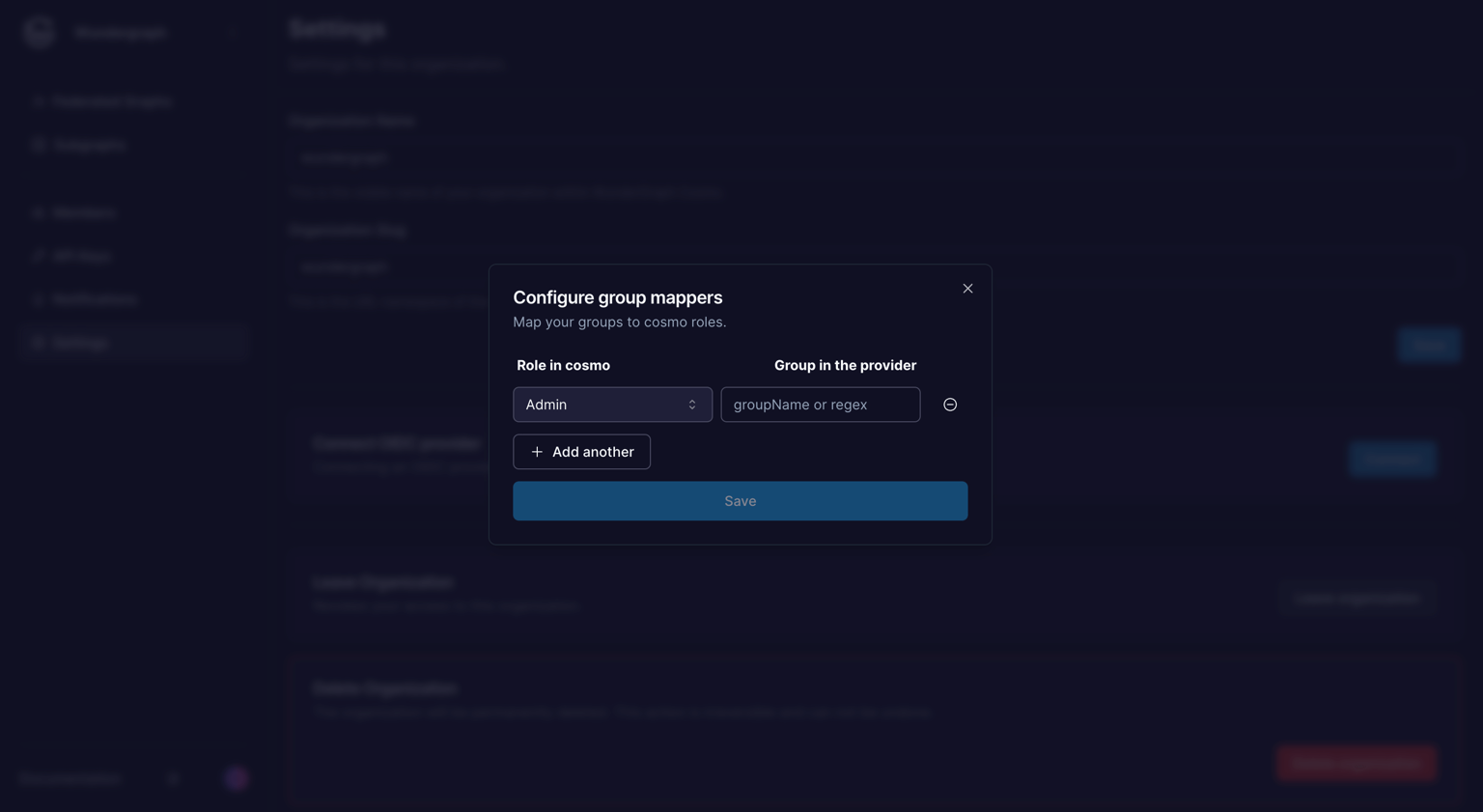
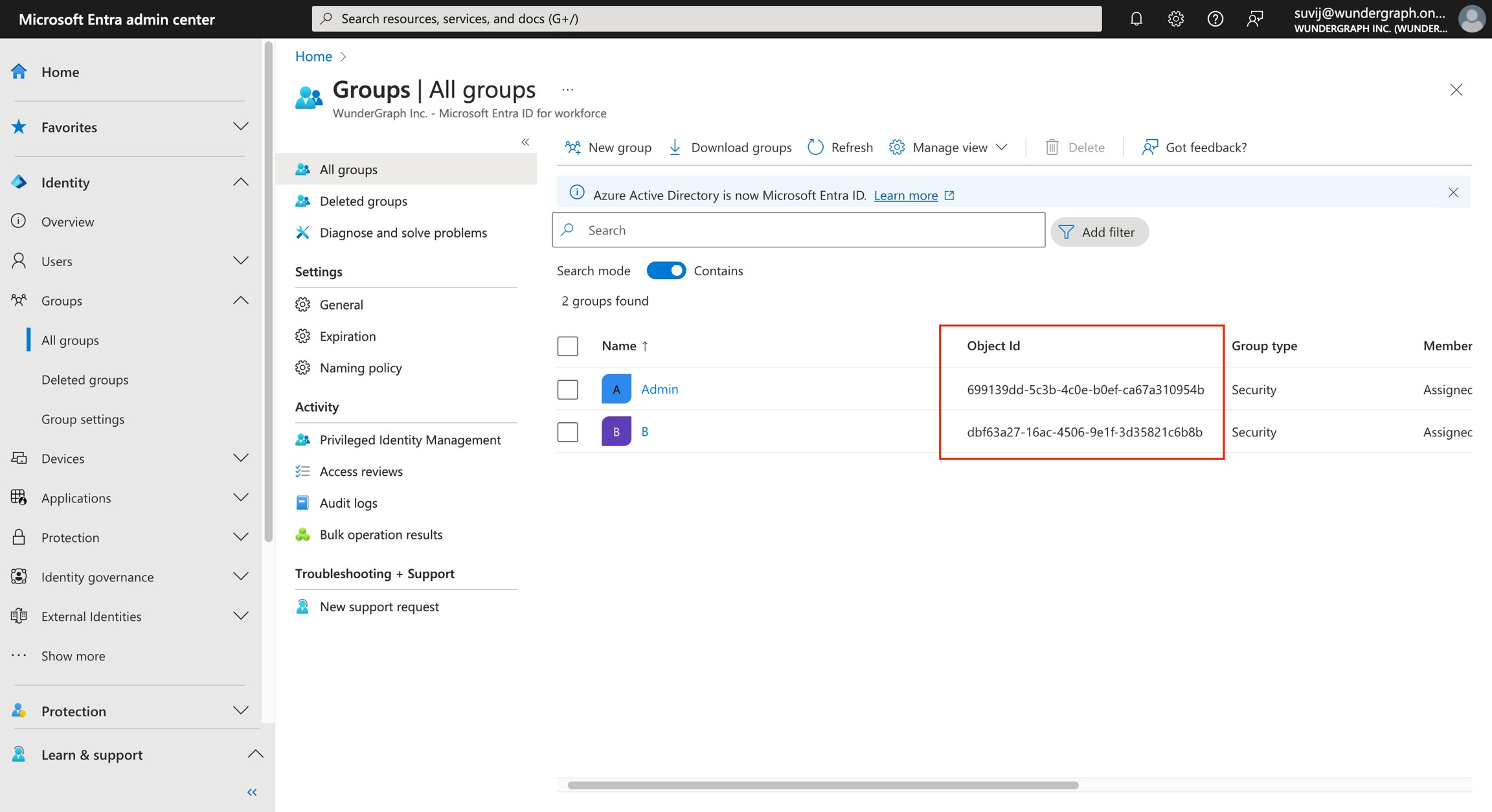
 Configure the mapping between the roles in Cosmo and the groups in Microsoft Entra. The field **Group in the provider** should be populated with the **Object ID of a group from Entra.** Once all the mappers are configured, click on **Save**. Every member in those groups would get the respective role configured.
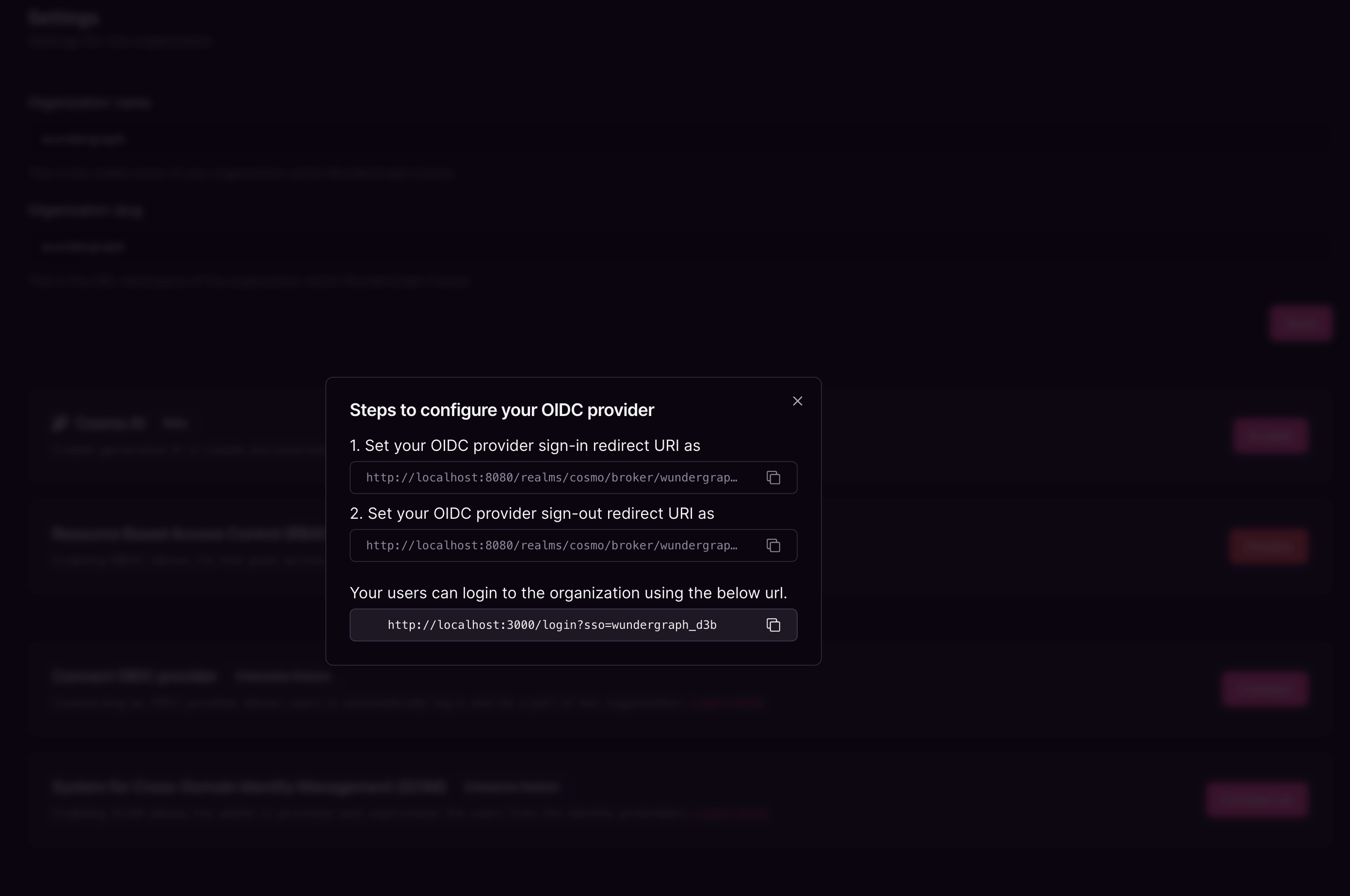
 Copy the sign-in and sign-out redirect URIs displayed in the dialog.
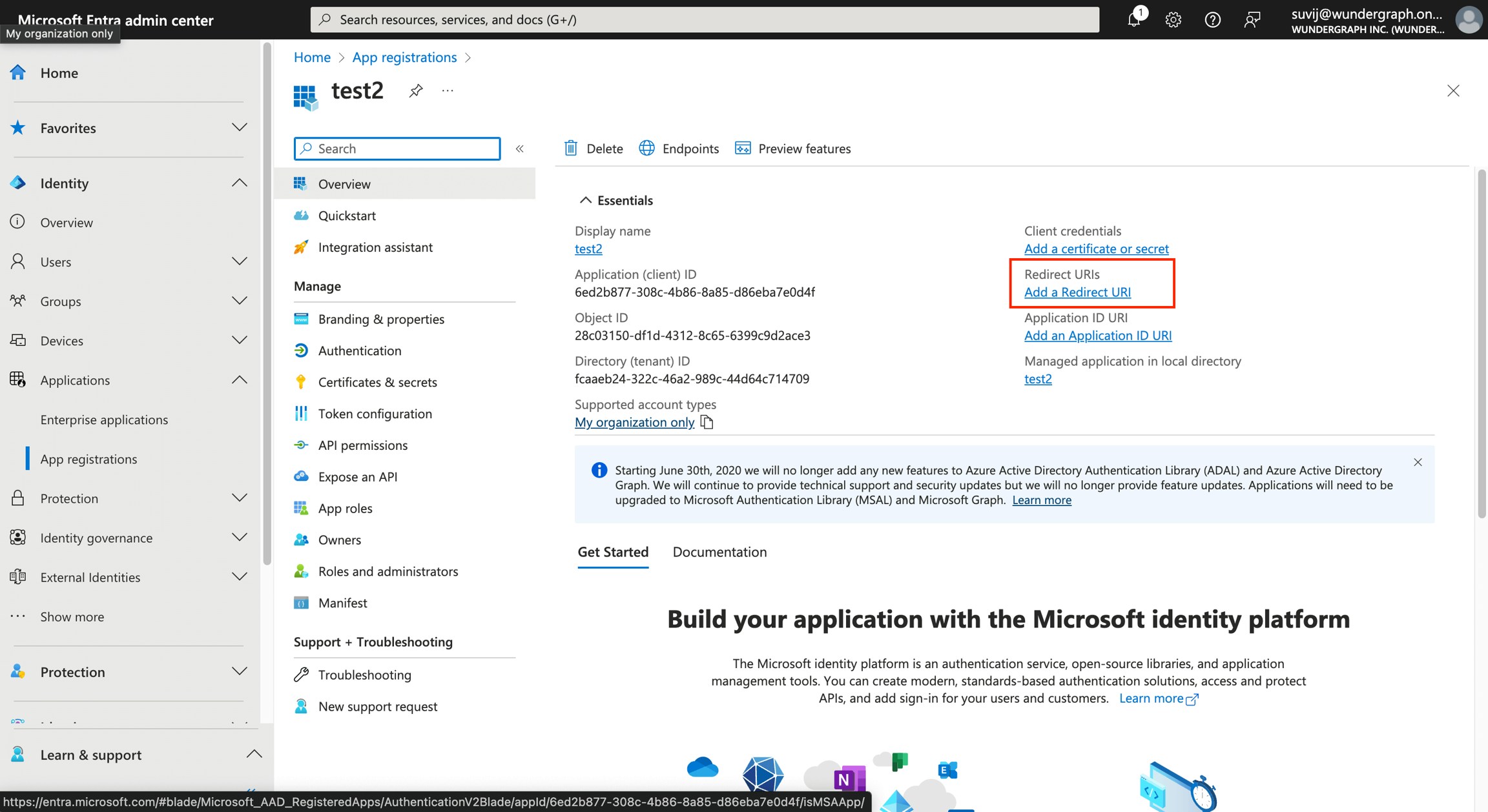
 Navigate back to the **App registrations** page, in the **All applications** tab select the app which we created.
Click on **Add a redirect URI, and** now click on **Add a platform,** select **Web** and then paste the Sign-in and Sign-out redirect URIs in the **Redirect URIs** and **Front-channel logout URL **respectively**.**
Navigate back to the **App registrations** page, in the **All applications** tab select the app which we created.
Click on **Add a redirect URI, and** now click on **Add a platform,** select **Web** and then paste the Sign-in and Sign-out redirect URIs in the **Redirect URIs** and **Front-channel logout URL **respectively**.**
 Select **ID tokens** and then click on **Configure.**
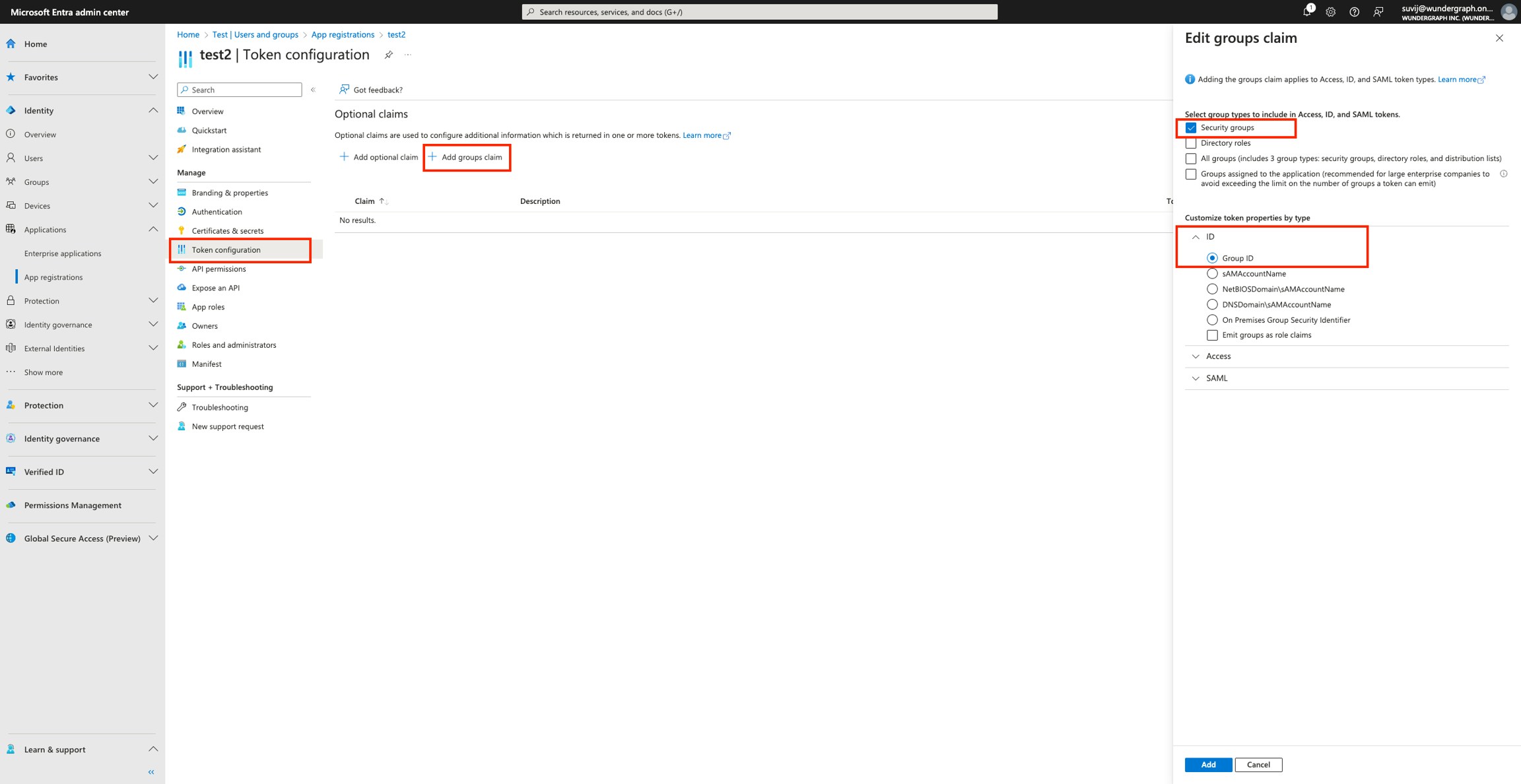
Now navigate to **Token configuration**, and click on **Add groups claim.**
Select **Security groups,** expand **ID,** select **Group ID** and click on **Add.**
Select **ID tokens** and then click on **Configure.**
Now navigate to **Token configuration**, and click on **Add groups claim.**
Select **Security groups,** expand **ID,** select **Group ID** and click on **Add.**
 Navigate to **API Permissions**, and click on **Add a permission.**
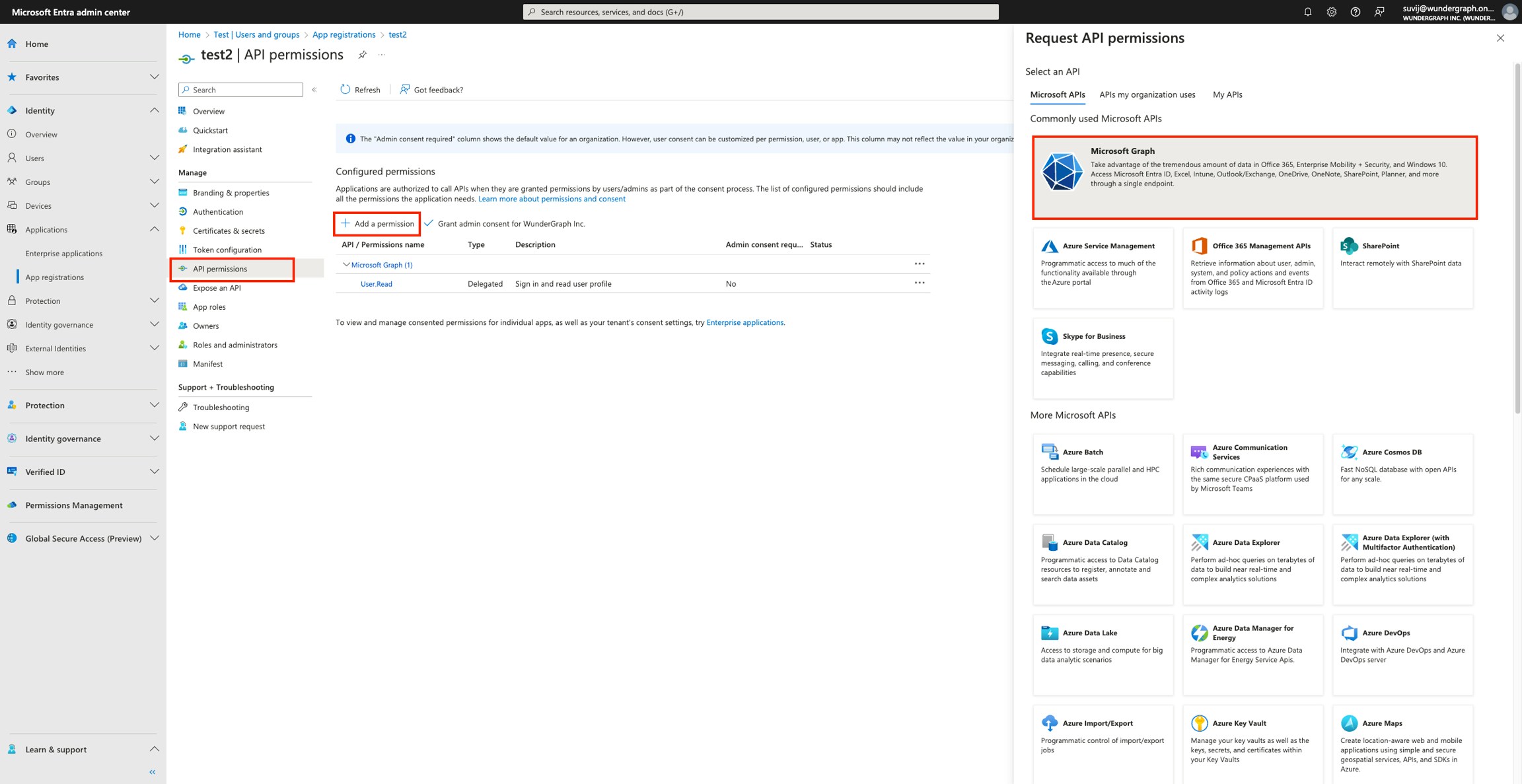 Click on **Microsoft Graph,** and then on **Delegated permissions,** select **email, openid and profile** and then click on **Add permissions.**
Now you can assign users/groups to the application, and only those users will be able to log into Cosmo using the URL provided on setting up the provider.
Click on **Microsoft Graph,** and then on **Delegated permissions,** select **email, openid and profile** and then click on **Add permissions.**
Now you can assign users/groups to the application, and only those users will be able to log into Cosmo using the URL provided on setting up the provider.
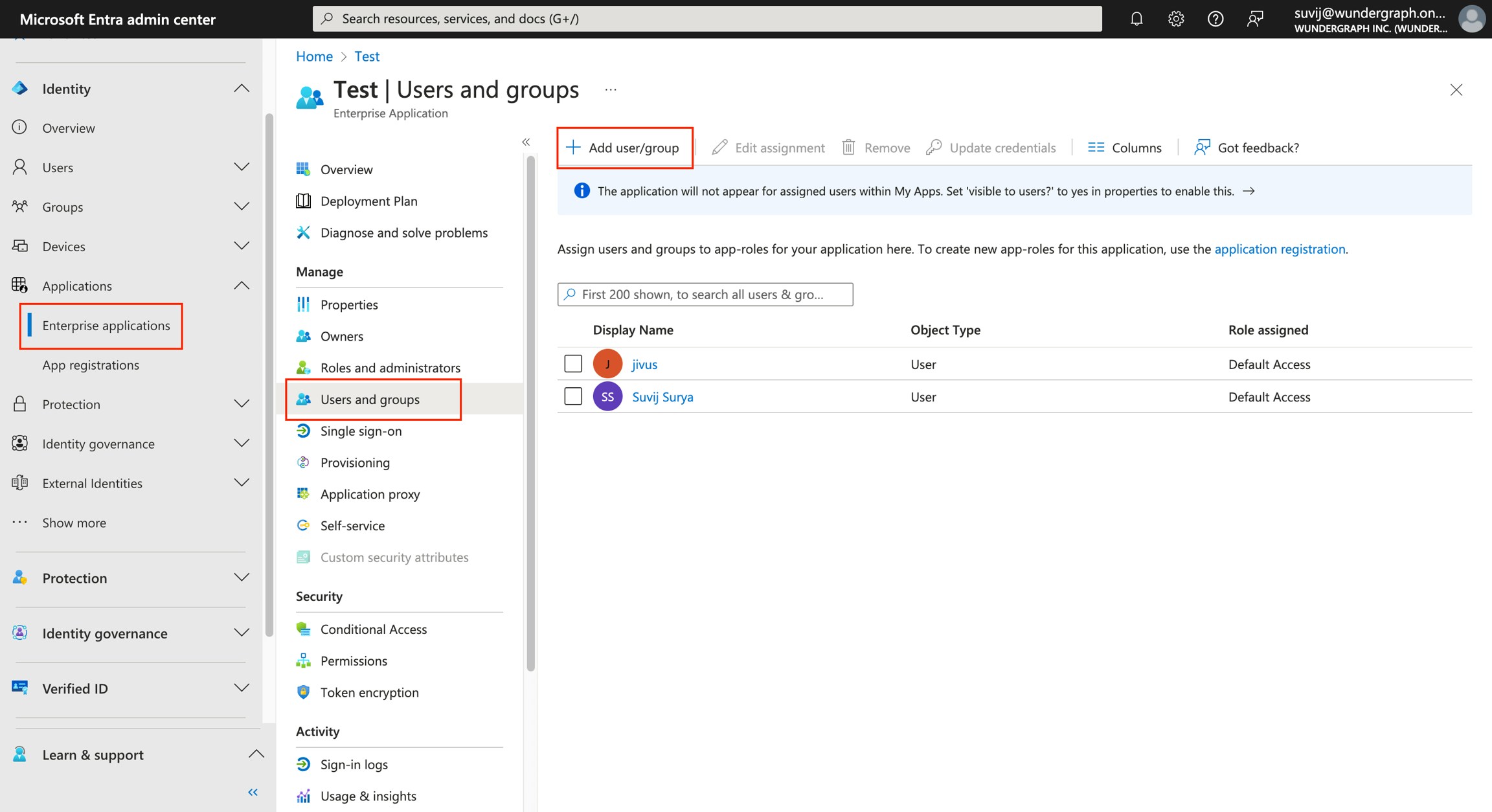 Please make sure that the users added to the application have an email.
Steps to add a user:
Navigate to Users/All users, click on New User and then click on Create a new user.
Please make sure that the users added to the application have an email.
Steps to add a user:
Navigate to Users/All users, click on New User and then click on Create a new user.
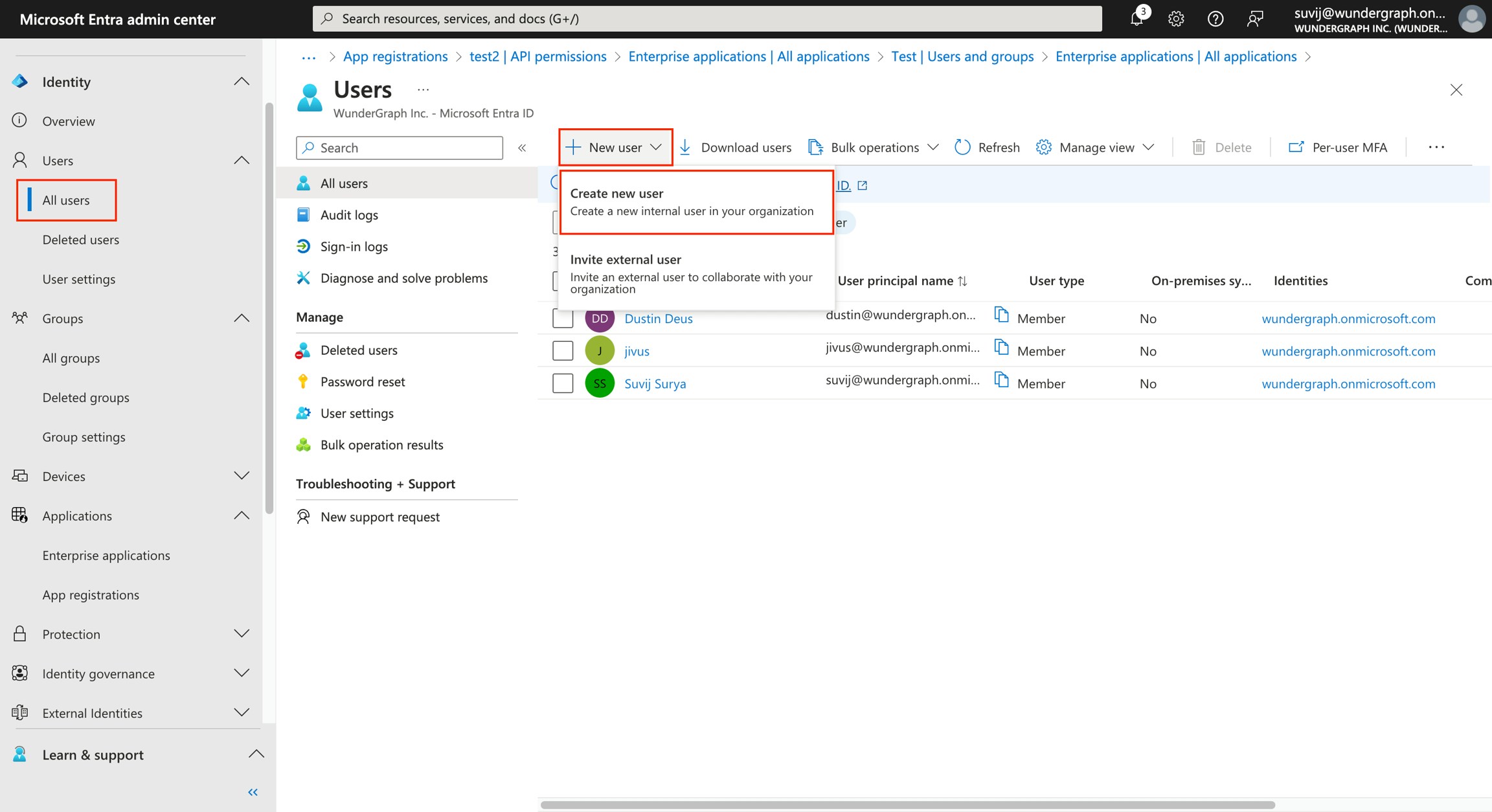 Provide the user principal name, the display name and then click on **Next**.
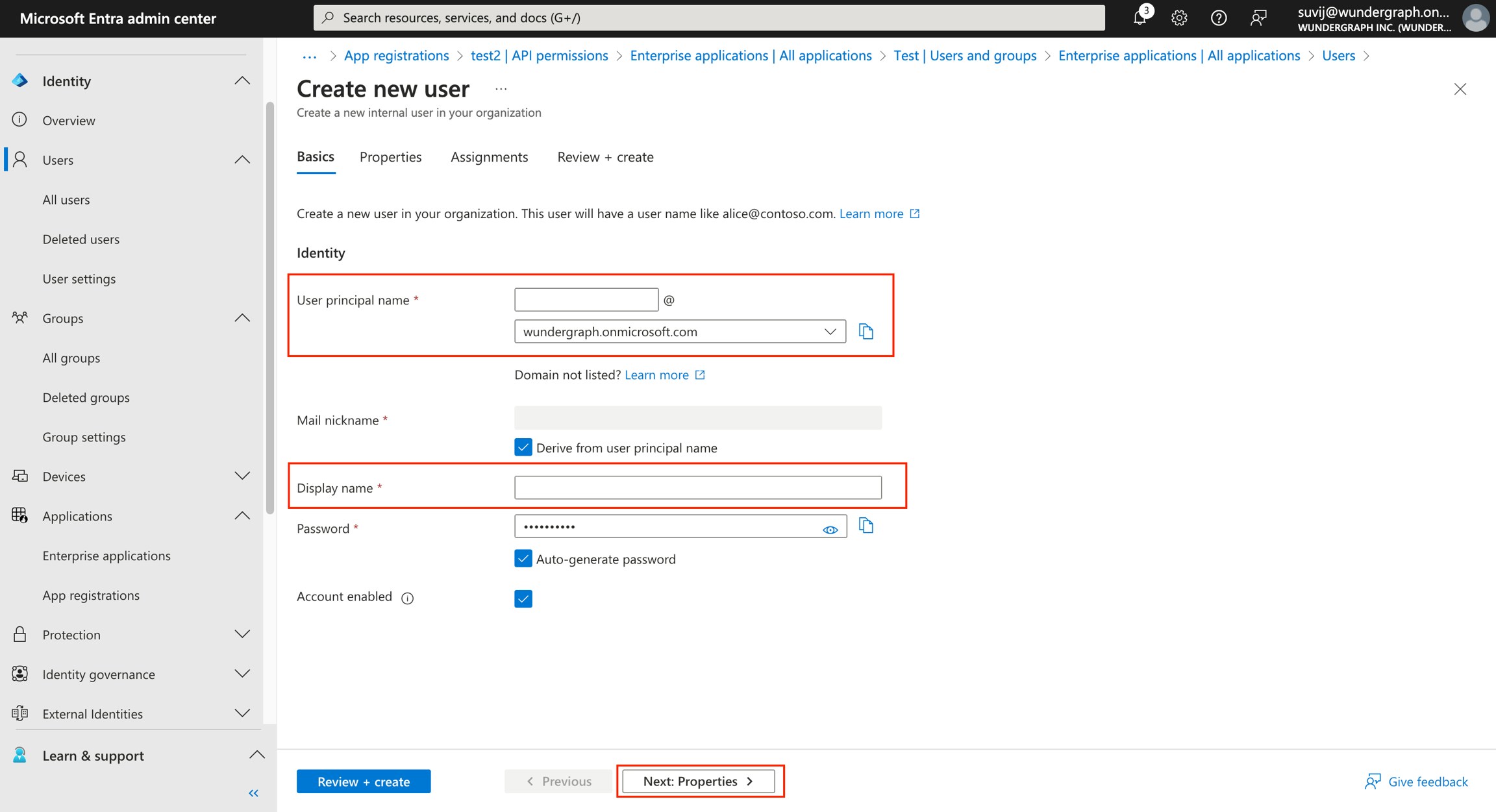 Provide the first name(optional) and the last name(optional).
Provide the email of the user(**Required**).
Provide the first name(optional) and the last name(optional).
Provide the email of the user(**Required**).
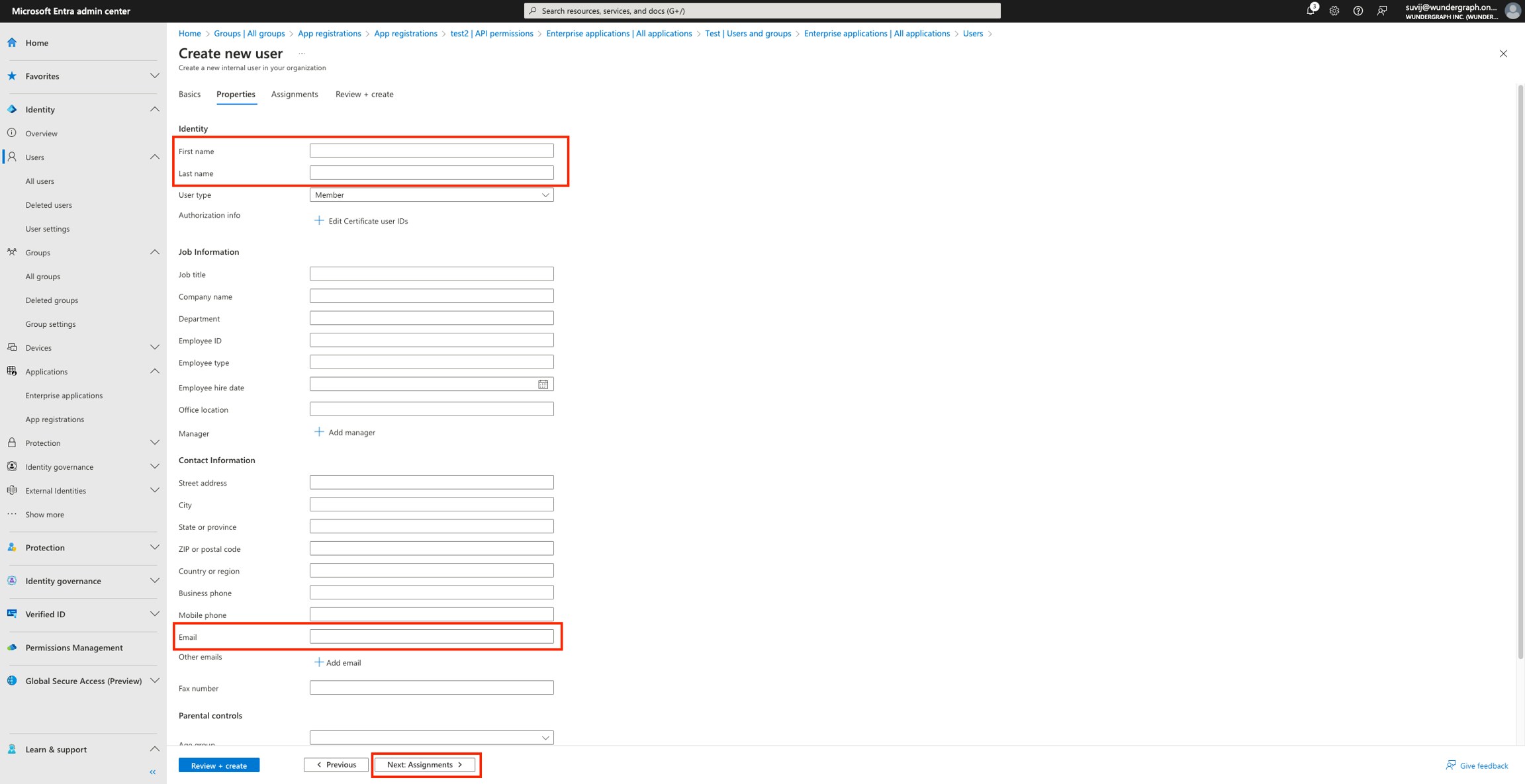 Then click on **Next** and assign the user to the groups according to your needs.