> ## Documentation Index
> Fetch the complete documentation index at: https://wundergraphinc-brendan-add-sof-link.mintlify.site/llms.txt
> Use this file to discover all available pages before exploring further.
# Using Persisted Operations with Federated GraphQL
> Learn how to leverage Persisted Operations / Persisted Queries / Trusted Documents with Cosmo & Cosmo Router
## Overview
Persisted Operations, also known as Trusted Documents or Persisted Queries, allow you to register GraphQL Operations on the Router. This way, you can execute an operation by its identifier instead of sending the whole operation to the router on each query, reducing bandwidth requirements and increasing security. This is also known as Operation Safelisting.
## Prerequisites
* Follow the tutorial to set up your demo subgraphs, install the required tools, and create a Cosmo account.
* [curl](https://curl.se)
## Write an Operation
Let's start by writing an operation in our playground. The easiest way to open it is to use [Cosmo Studio](https://cosmo.wundergraph.com). Navigate to your federated graph's `Playground` by clicking its link in the sidebar.
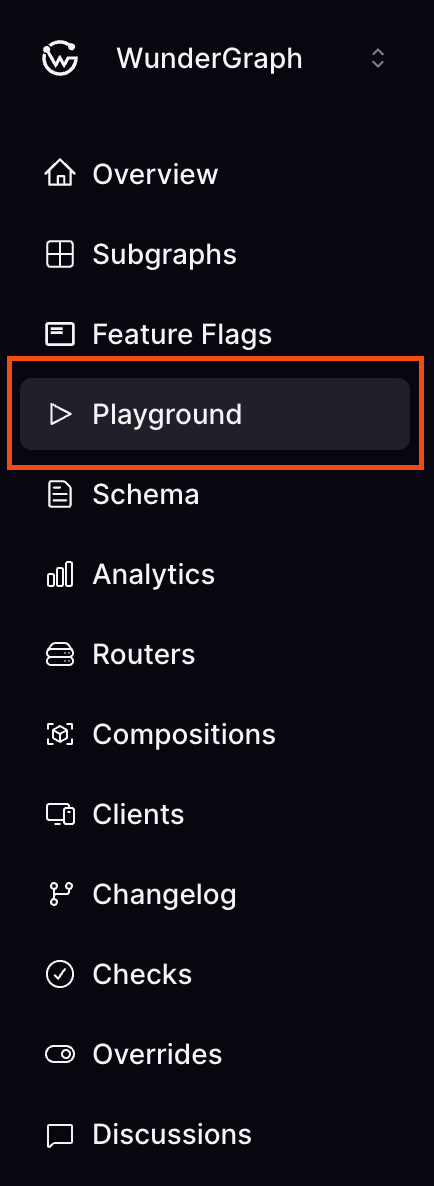 Now type and execute the following operation:
```graphql theme={null}
query {
employees {
id
}
}
```
The router will return a list of IDs for every employee in the subgraph.
```json theme={null}
{
"data": {
"employees": [
{
"id": 1
},
...
{
"id": 12
}
]
}
}
```
To get ourselves familiar with `curl`, let's also execute this operation using the command line:
```bash theme={null}
# This assumes your router is running on 127.0.0.1:3002
curl 'http://127.0.0.1:3002/graphql' \
--json '{"query":"query { employees { id } }"}'
```
## Register a persisted operation
Now let's turn this query into a persisted operation. To register persisted operations, we will use `wgc`, which we installed in the prerequisites step. Open a text editor and create a file named `employees.graphql` with the operation body that we previously used:
```graphql theme={null}
# employees.graphql
query {
employees {
id
}
}
```
To register the operation, run:
```bash theme={null}
wgc operations push production -c curl -f employees.graphql
```
There are a few things to note from this command:
* The first argument is the federated graph name to push the operations to. This is the federated graph we created while following , named `federation`.
* After the federated subgraph name, we must also indicate a client name. Persisted operations in Cosmo are always associated with a given client. If needed, Cosmo will automatically register the given client name the first time it sees it. During operation execution, the client name is obtained from the `graphql-client-name` HTTP header.
* Finally, we specify one or more files that contain GraphQL operations. Here we're using a plain `.graphql` file, but other formats are also supported, including:
Now run the command and notice its output. It will show how many operations were pushed, along with their status (created or up to date) and their identifiers.
```bash theme={null}
pushed operation 2d9df67f96ce804da7a9107d33373132a53bf56aec29ef4b4e06569a43a16935 (created)
pushed 1 operations: 1 created, 0 up to date
```
Write down the ID of the operation, which might be different than the one in the example, because we will use it later.
## Execute a persisted operation
Now that we've pushed an operation, let's execute it. To make things simple, we'll use `curl` to run the operation. So, instead of sending the operation contents, we will send its identifier. Run the following command, indicating the client name (in the `graphql-client-name` header) and the operation identifier (in the payload):
```bash theme={null}
# This assumes your router is running on 127.0.0.1:3002
curl 'http://127.0.0.1:3002/graphql' \
-H 'graphql-client-name: curl' \
--json '{"extensions":{"persistedQuery":{"version":1,"sha256Hash":"2d9df67f96ce804da7a9107d33373132a53bf56aec29ef4b4e06569a43a16935"}}}'
```
This will return the same data as executing the operation by returning its contents.
## Further information
* Check the router documentation for [Persisted Operations](/router/persisted-queries/persisted-operations).
* Check the documentation for [Push](/cli/operations/push) command.
Now type and execute the following operation:
```graphql theme={null}
query {
employees {
id
}
}
```
The router will return a list of IDs for every employee in the subgraph.
```json theme={null}
{
"data": {
"employees": [
{
"id": 1
},
...
{
"id": 12
}
]
}
}
```
To get ourselves familiar with `curl`, let's also execute this operation using the command line:
```bash theme={null}
# This assumes your router is running on 127.0.0.1:3002
curl 'http://127.0.0.1:3002/graphql' \
--json '{"query":"query { employees { id } }"}'
```
## Register a persisted operation
Now let's turn this query into a persisted operation. To register persisted operations, we will use `wgc`, which we installed in the prerequisites step. Open a text editor and create a file named `employees.graphql` with the operation body that we previously used:
```graphql theme={null}
# employees.graphql
query {
employees {
id
}
}
```
To register the operation, run:
```bash theme={null}
wgc operations push production -c curl -f employees.graphql
```
There are a few things to note from this command:
* The first argument is the federated graph name to push the operations to. This is the federated graph we created while following , named `federation`.
* After the federated subgraph name, we must also indicate a client name. Persisted operations in Cosmo are always associated with a given client. If needed, Cosmo will automatically register the given client name the first time it sees it. During operation execution, the client name is obtained from the `graphql-client-name` HTTP header.
* Finally, we specify one or more files that contain GraphQL operations. Here we're using a plain `.graphql` file, but other formats are also supported, including:
Now run the command and notice its output. It will show how many operations were pushed, along with their status (created or up to date) and their identifiers.
```bash theme={null}
pushed operation 2d9df67f96ce804da7a9107d33373132a53bf56aec29ef4b4e06569a43a16935 (created)
pushed 1 operations: 1 created, 0 up to date
```
Write down the ID of the operation, which might be different than the one in the example, because we will use it later.
## Execute a persisted operation
Now that we've pushed an operation, let's execute it. To make things simple, we'll use `curl` to run the operation. So, instead of sending the operation contents, we will send its identifier. Run the following command, indicating the client name (in the `graphql-client-name` header) and the operation identifier (in the payload):
```bash theme={null}
# This assumes your router is running on 127.0.0.1:3002
curl 'http://127.0.0.1:3002/graphql' \
-H 'graphql-client-name: curl' \
--json '{"extensions":{"persistedQuery":{"version":1,"sha256Hash":"2d9df67f96ce804da7a9107d33373132a53bf56aec29ef4b4e06569a43a16935"}}}'
```
This will return the same data as executing the operation by returning its contents.
## Further information
* Check the router documentation for [Persisted Operations](/router/persisted-queries/persisted-operations).
* Check the documentation for [Push](/cli/operations/push) command.